Shutter Management Plugin
The plugin Management of shutters will allow you to easily manage the automatic positioning of your shutters according to the elevation and azimuth of the sun and / or other conditions of your choice. All calculations are carried out directly by the plugin without requiring an internet connection.
Well understood, this plugin is able to replace all the scenarios relating to the opening, closing or positioning of your shutters. You can find an example of use by reading this blog article written by Loïc.
Important
The plugin Management of shutters only works with equipment that has an action / cursor command allowing to position the shutter at a certain opening / closing percentage. If your shutter only works when opening / closing, the plugin will not be usable.
Configuration
The plugin Management of shutters just needs to be enabled after installation and does not require further configuration.
Configuration of the shutters
To access the various equipment of Management of shutters, you have to go to the menu Plugins → Automation → Shutters Management.
INFORMATION
The button + Add allows you to add a new shutter to automate.
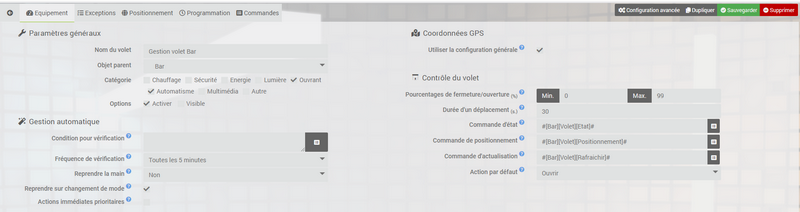
All of the automation configuration for each component is carried out from the first tab of the equipment :
- Component name : Name of equipment.
- Parent object : Indicates the parent object to which the equipment belongs.
- Category : Allows you to choose the equipment category.
- Options :
- Activate : Used to make the equipment active.
- Visible : Make equipment visible.
Below, we will be able to configure the automatic management engine itself :
- Condition for verification : Condition to be fulfilled for automatic management to activate, if this condition is not true, the plugin will not modify the position of the pane (empty by default = always active).
- Frequency of verification : Frequency of checking exceptions and positioning conditions.
- Regain control : Authorize or not the automatic management system to modify the position of the shutter if it has been operated manually.
Example : the system closes the shutter then you open it manually a few minutes later, then the automatic management will only be done if Regain control is at “Yes” or that the recovery time has passed or that the command Take over management is triggered.
- Resume on change of mode : Check the box to resume automatic management in the event of a change of mode.
- Priority immediate action : Check the box to have immediate action exceptions run regardless of other conditions, even if suspended.
Important
The “modes” mentioned here relate to the modes defined from the tab Commands of each plugin equipment Shutters management and do not in any way refer to any plugin modes Mode.
Subsequently it will be necessary to indicate the coordinates of the building to be able to calculate the position of the sun :
- Use general configuration : Check the box to use the contact details entered in the general configuration of Jeedom.
ou
- Latitude : The latitude of the building or shutter.
- Longitude : The longitude of the building or shutter.
- Altitude : The altitude of the building or shutter.
Finally, all that remains is to fill in the information relating to the control of the shutter :
- Closing / opening percentages : Indicate the minimum percentage of closure (usually 0) and maximum opening (usually 99 or 100).
- Duration of a trip : Maximum time in seconds to perform a complete opening or closing movement.
- Status command : Fill in the info / numeric command indicating the current position of the shutter.
- Positioning control : Fill in the action / cursor command used to position the shutter.
- Refresh command : Fill in the action command to refresh the position of the shutter (facultatif).
- Default action : Action that will be performed by default if no exception or position is valid.
Exceptions
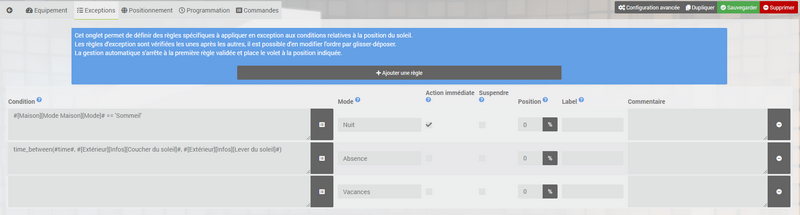
This tab will allow you to define specific rules that will be an exception to the conditions relating to the position of the sun in the following tab. The rules are checked one after the other, the automatic management engine stops at the first valid rule and places the shutter in the indicated position.
- Condition : The condition to be fulfilled for the rule to be valid (facultatif).
- Mode : If entered, the condition will only be valid if the shutter is currently in the specified mode. It is possible to specify several modes by separating them with commas (facultatif).
- Immediate exception : Check the box to have the rule run immediately as soon as the condition is valid. Please note that this only works when the state of the commands changes. If you put for example
#hour# == 1022the immediate exception will not work. Same for variables. - To suspend : Check the box to suspend automatic management as long as the rule is valid.
- Position : The desired position in percentage if the rule is valid (empty = no action).
- Label : Label associated with the validation of the exception rule (facultatif).
Positionnement
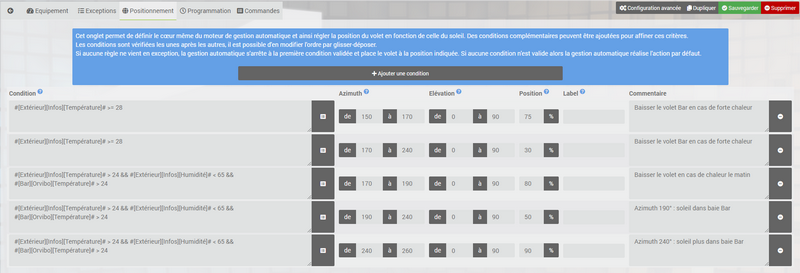
It is within this tab that you will be able to manage the positioning of the shutter automatically according to the position of the sun.
- Condition : Condition, complementary to the position, to be fulfilled for the positioning of the shutter to be validated (facultatif).
- Azimuth : Fill in the azimuth limits of the sun in degrees between which the condition will be valid.
- Elevation : Fill in the sun elevation limits in degrees between which the condition will be valid.
- Position : The desired position in percentage if the positioning conditions (and additional if applicable) are valid.
- Label : Label associated with the validation of the positioning condition (facultatif).
TRICK
The site suncalc.org allows, once your address entered, to visualize the position of the sun and the angles of azimuth and elevation according to the hours of the day (just drag the little sun up).
Programmation
This tab only appears if the plugin Agenda is installed on your Jeedom. It lists the programming of the plugin Agenda acting on the automatic management of this component to, for example, plan a suspension and a manual resumption during a child’s nap hours.
Commandes
This last tab gives access to the list of commands and allows to define / delete modes for the automatic management of the shutter :
- Sun azimuth : Current azimuth angle of the sun.
- Sun rise : Current elevation angle of the sun.
- Refresh : Force commands update Sun azimuth and Sun rise.
It is of course possible to use the values of the commands Azimuth sun and Sun rise elsewhere in Jeedom.
- Management status : Current state of automatic management in binary (0 = suspended / 1 = active).
- Force action : Force the calculation of the position of the shutter according to the position of the sun and the exceptions and applies the positioning regardless of the state of the automatic management (suspended or not).
- Last Position : Last position requested from the shutter by the plugin.
- Label : Label corresponding to an exception or a valid positioning condition.
- To suspend : Suspends automatic shutter management.
- Suspend (Label) : Current status of the automatic shutter management suspension (None / Manual / Auto).
- Resume : Force restart of automatic management.
This is the command that must be executed to switch back to automatic management if you have changed the position of your shutter manually and configured Regain control at “No”.
- Mode : Current shutter mode.
The blue button Add a mode allows you to add a new action command whose name will correspond to the new current mode from the moment it is executed.
TRICK
You can, for example, define a mode Day and a mode Night and adjust the opening and closing of your shutter according to these 2 modes.
Santé
The plugin Management of shutters has a window Health, on the general equipment page, which allows you to view at a glance the configurations of each automatic management.
Panel
The plugin also has a management panel available both in desktop and mobile version. To activate it, just go to Plugins → Plugins management, click on the plugin Shutters management and check the boxes to display the panels at the bottom right.