Huawei GSM in modem card mode
In 90% of cases, it is not necessary to force GSM keys into GSM-only mode (instead of GSM + CD-ROM + card reader); the only time this is required is if you want to use the key in a Jeedom instance running on a VM (VMware ESXi). In fact, if you do not set it to GSM-only mode, the dongle will not appear in the list of USB devices that you can pass to the VM.
Important
This tutorial was created on Windows 10
Installing Drivers
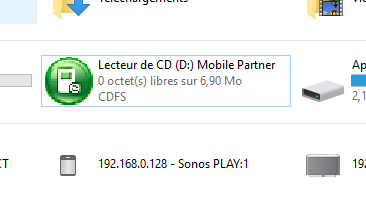
Once the dongle is connected to a Windows 10 PC, you should see a new CD-ROM drive. Double-click it and install the software (there’s nothing to change—just click “Next” all the way through).
COM Port Detection
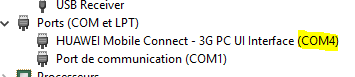
Next, you need to find the communication port number. Go to the “Start” menu and search for “Device Manager.” Open it, then expand the “Ports (COM & LPT)” section. You should see an entry labeled “HUAWEI.” Then, simply note down the COM port number:
Download PuTTY
Next, download PuTTY here and run the downloaded file
Configuring PuTTY and switching to GSM-only mode
Once launched, configure PuTTY as follows (be sure to enter your COM port number; see the step above):
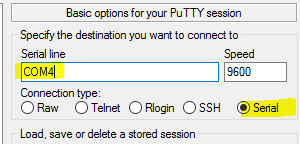
A black window will appear (occasionally, a “boot…” message may appear; this is normal and means you are successfully connected to the GSM dongle). In this window, type the following and then press the “Enter” key:
AT^u2diag=0
Important
Please note that when you type the text, you won’t see anything on the screen—this is normal, but the text is still being entered correctly.
Normally, you should get an “OK” in response.
That’s it—you’re all set. Your key is now in GSM-only mode, and you can use it through VMware.