How to Document a Plugin
Introduction
In this guide, we’ll show you how to document your plugin.
Principle
The concept is very simple: the plugin’s documentation should be a simple web link that you specify in your info.json file (see details here ) in the “Documentation” field.
Please note that there is also a Changelog field, which should work the same way as the documentation field.
How do I do that?
As mentioned above, you just need to specify the HTTP(S) link to your documentation in the info.json file, so you’re free to choose the layout, hosting provider, or even the mode:
- a blog
- a simple web server
- GitHub (the only method we’ll cover here)
GitHub
The easiest way to manage your documentation is to use GitHub Pages, which has the advantage of being very easy to use.
Documentation language
GitHub supports AsciiDoc and Markdown (MD) for pages; here, we’ll focus only on Markdown.
We’re not going to describe the complete Markdown syntax here; other sites already do that very well, including this one
Location
We recommend that you create a folder in your plugin (hosted on GitHub) and copy the files and directories from the /docs folder in the plugin template into it (see here )
Once you’ve done that, you’ll have a fr_FR folder in the /docs directory (the only one you need to modify). In this folder, we recommend creating two files:
changelog.md=> your Changelogindex.md=> your documentation
Posted online
Pushing your content online is quite simple: just go to your GitHub repository, click “Settings,” and in the “GitHub Pages” section, enable the option for “master branch /docs folder” (as the label indicates, only the files in the /docs folder of your plugin’s master branch will be published online).
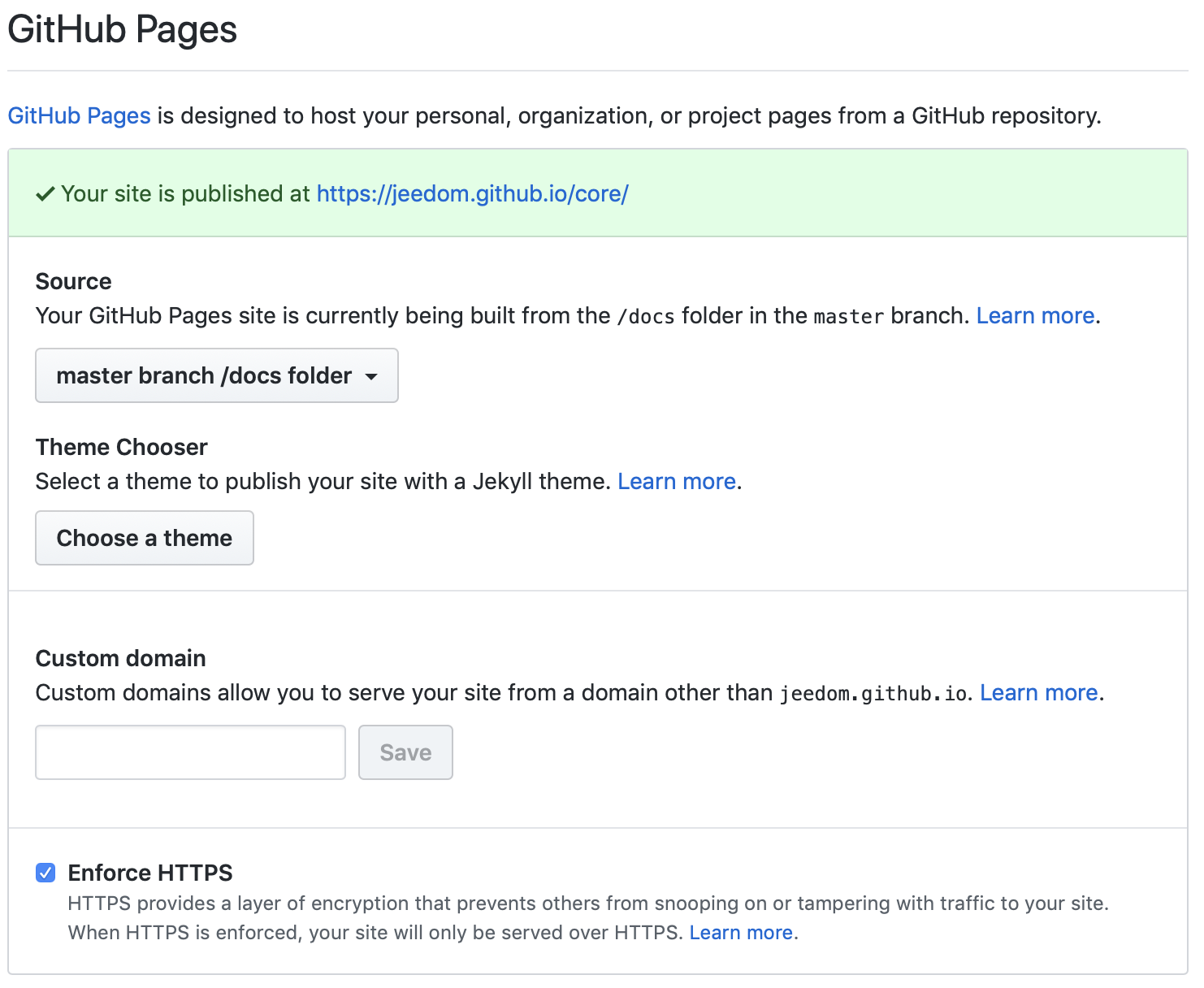
GitHub will then provide you with a link of the type https://jeedom.github.io/plugin-template/ (After a few minutes, when you click on it, you should see your documentation formatted correctly.)
You now need to add the links to your documentation in your plugin’s info.json file. To do this, you must:
- add
#language#/For the link to the documentation, this takes you to our examplehttps://jeedom.github.io/plugin-template/#language#/ - add
#language#/changelogFor the link to your change, this is what it looks like in our examplehttps://jeedom.github.io/plugin-template/#language#/changelog
Note
As you can see, when a user requests to view your documentation, Jeedom or the Marketplace will automatically replace #language# with the user’s language to direct them to the correct language version (if your documentation isn’t available in the user’s language, it will automatically redirect them to the French version).