Debian Installation
Here, we’ll look at how to install Debian, either as a VM or directly on a physical machine
Retrieving sources
You can find the latest Debian version as a netinstall (minimal size, but requires an internet connection for installation) here (you need to download the amd64 image) or click directly here to download the ISO.
Starting the installation
On a physical machine
You must either burn the ISO to a CD and insert the CD into the computer (though CD drives are becoming increasingly rare these days) or create a bootable USB drive.
To create a bootable USB drive, you need to download Rufus there, launch it and configure it as follows:
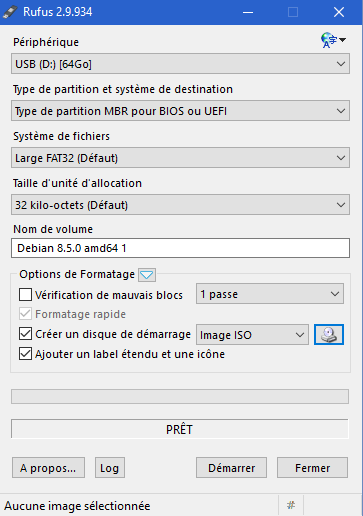
Note
Be sure to select the ISO file you downloaded just before
All you have to do is click “Start,” then insert the USB drive into the computer and boot from it.
On a VM
The process is fairly simple: create a new virtual machine, connect it, set up a virtual CD drive that points to the ISO file (be sure to connect it), and start the machine. See here for more details.
Installation
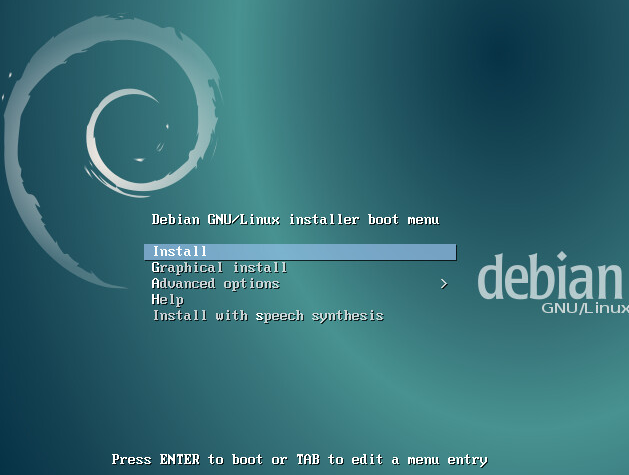
Press Enter to start the installation:
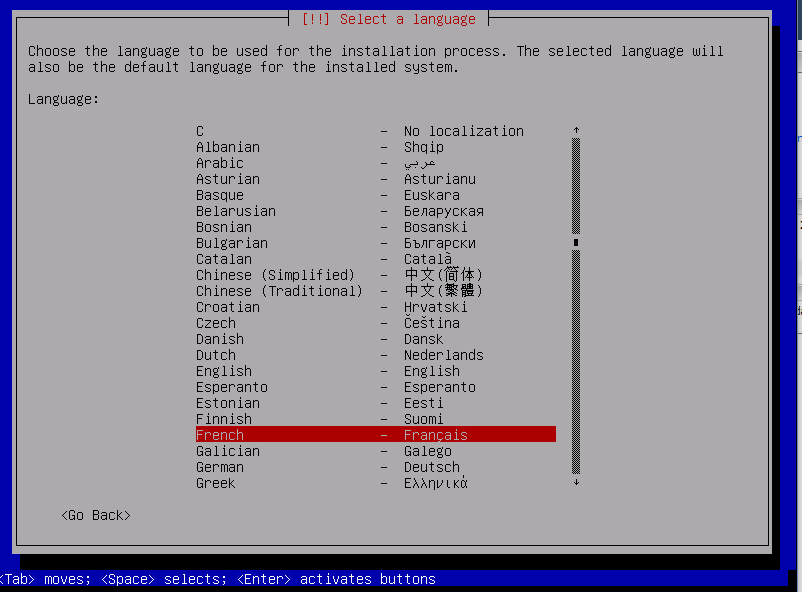
Select “French” and press Enter
Here, you need to select “French” (Français)
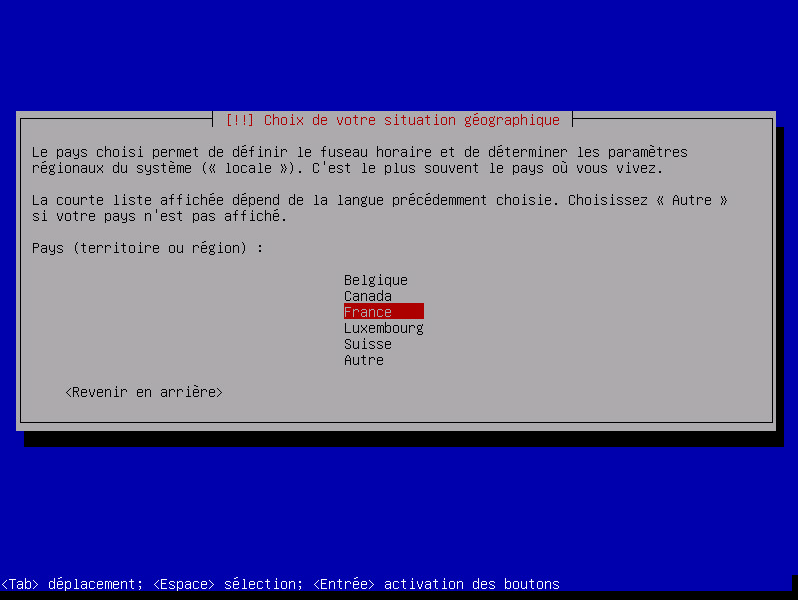
Same as above:
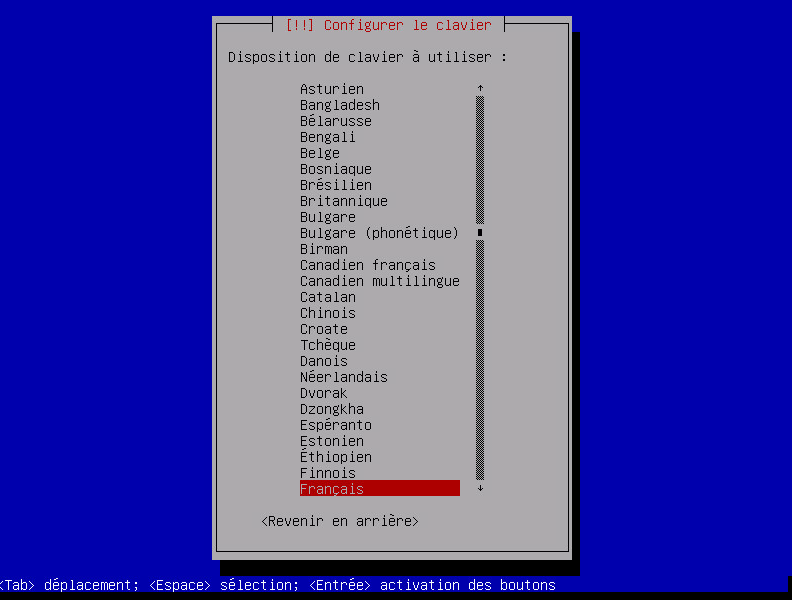
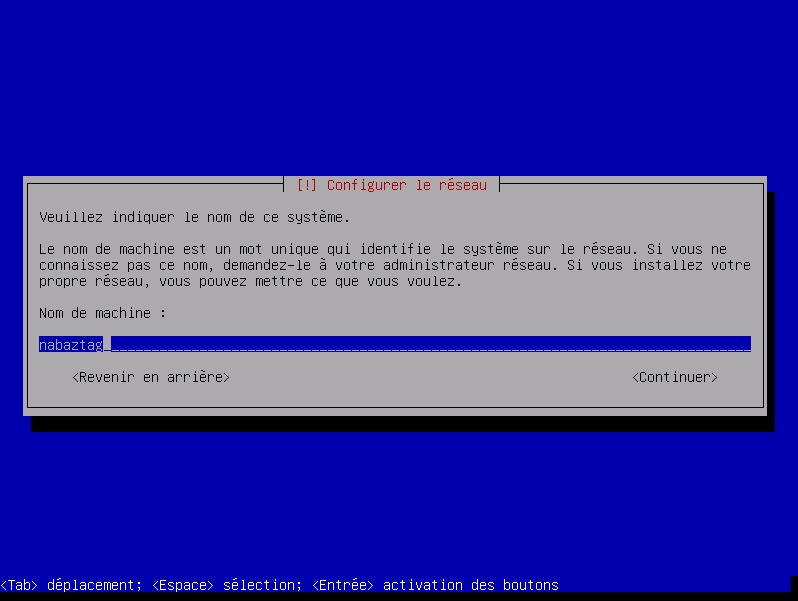
Enter the name of your device (here it’s “nabaztag,” but if it’s a Jeedom, enter “jeedom”)
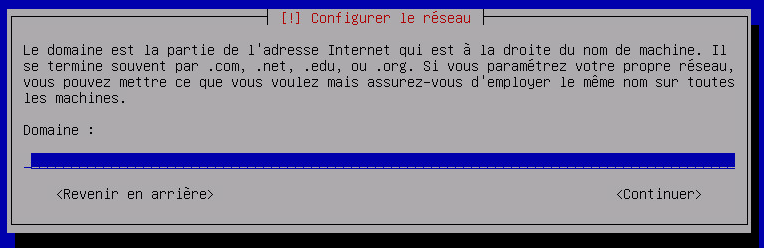
Just press Enter:
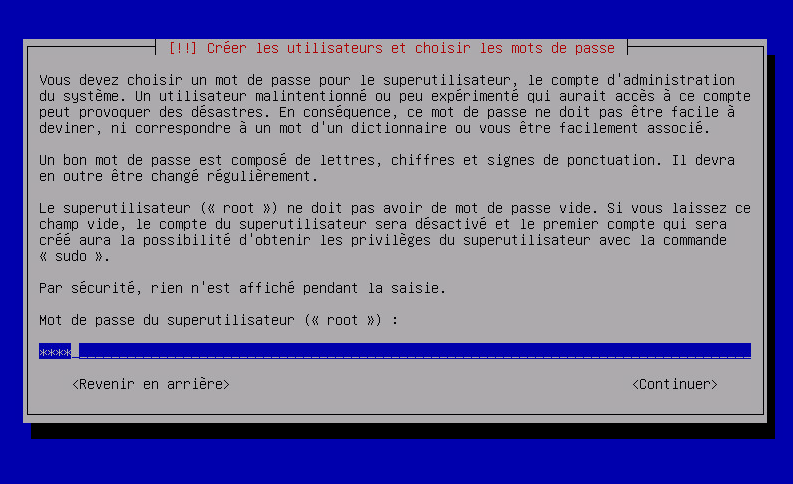
Set a password; I recommend a simple one here (such as oooo). It can be changed later (using the passwd command):
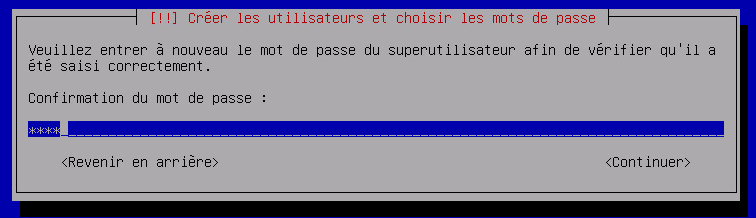
Just put it back:
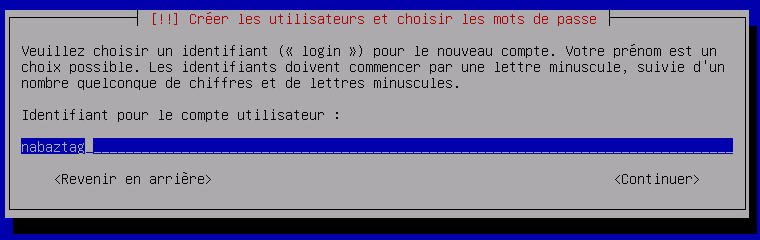
Enter the name of the primary user (here, “nabaztag,” but if it’s a Jeedom, enter “jeedom”)
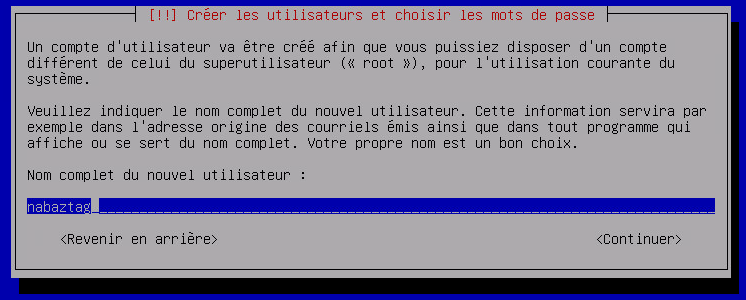
Enter the same thing:
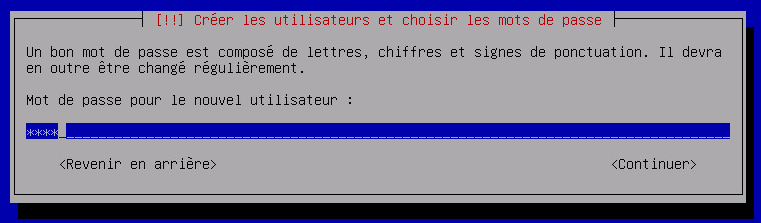
Set a password; I recommend a simple one here (such as oooo). It can be changed later (using the passwd command):
Enter the same thing:
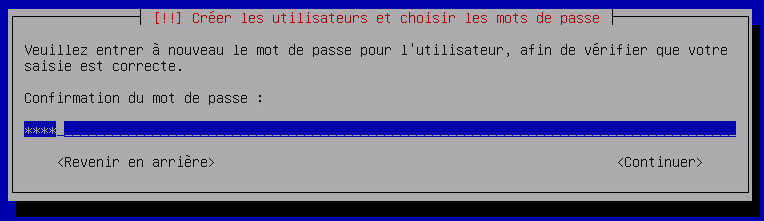
Confirm by pressing Enter:
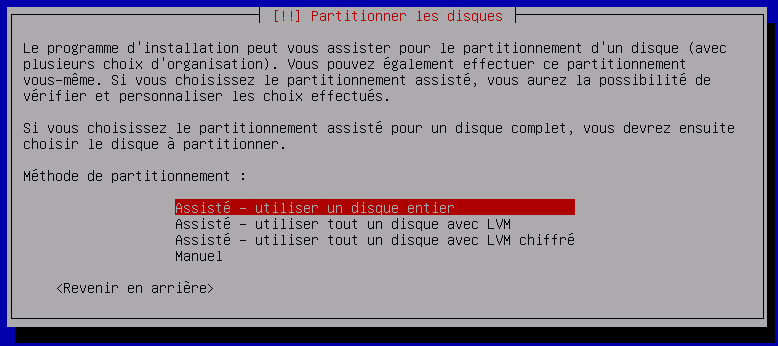
Same as above:
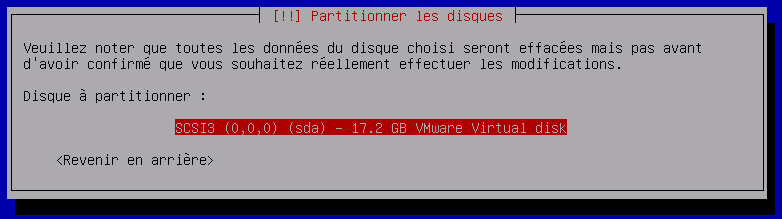
Confirm again by pressing Enter:
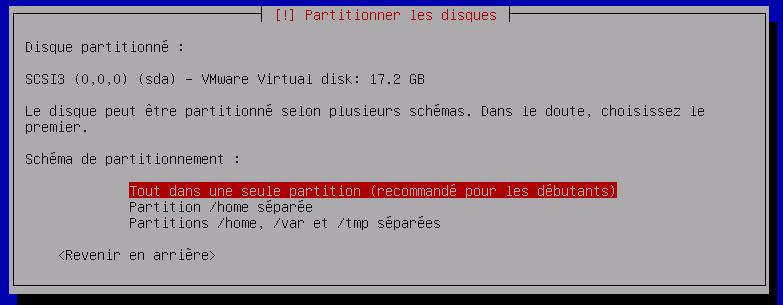
We’re still validating:
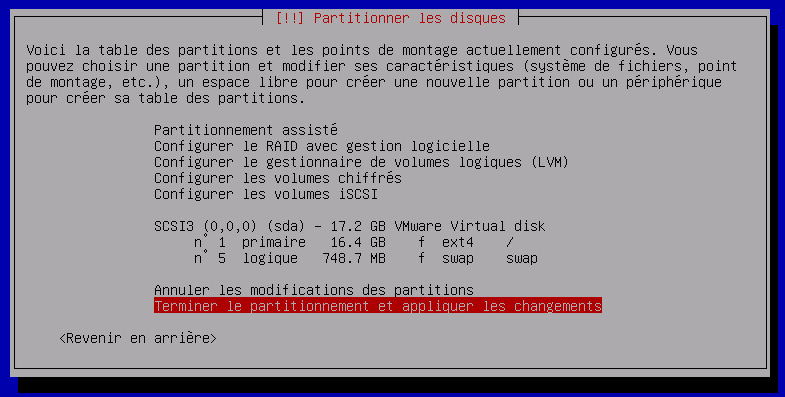
And also:
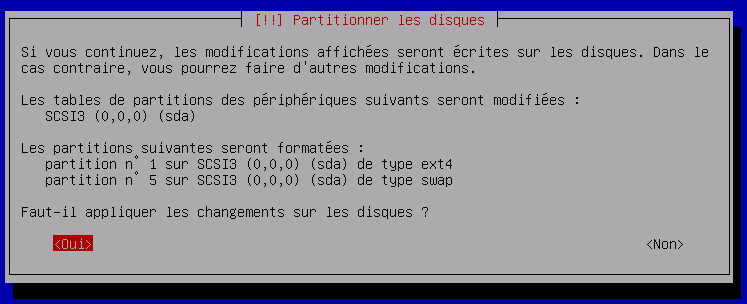
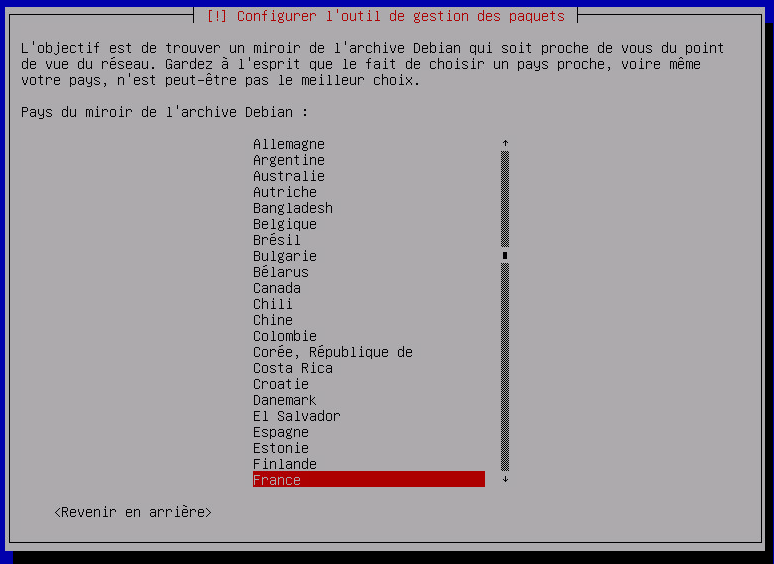
Select “France” and confirm:
Confirm by pressing Enter:
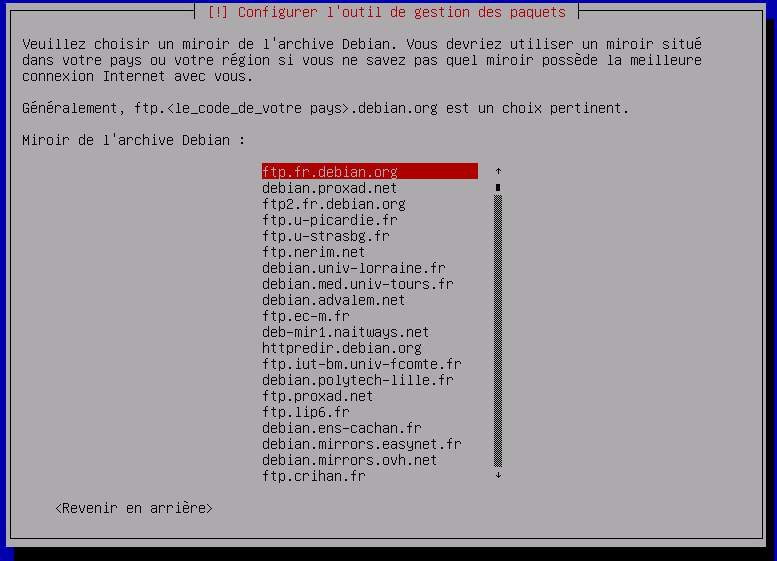
Same as above:
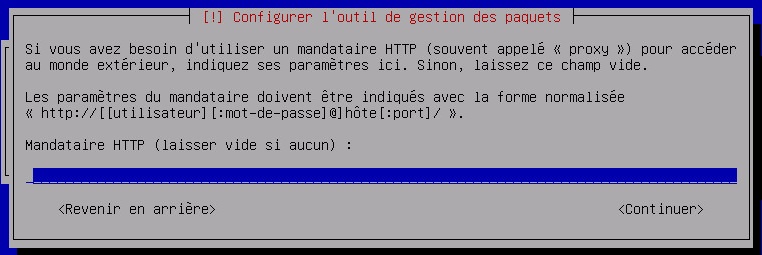
And more (yes, there’s a lot to configure on a Debian installation):
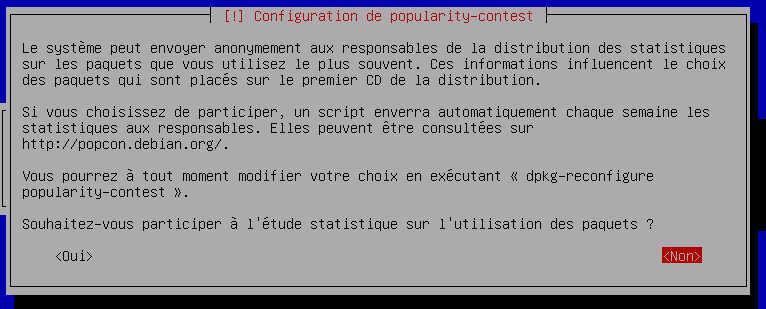
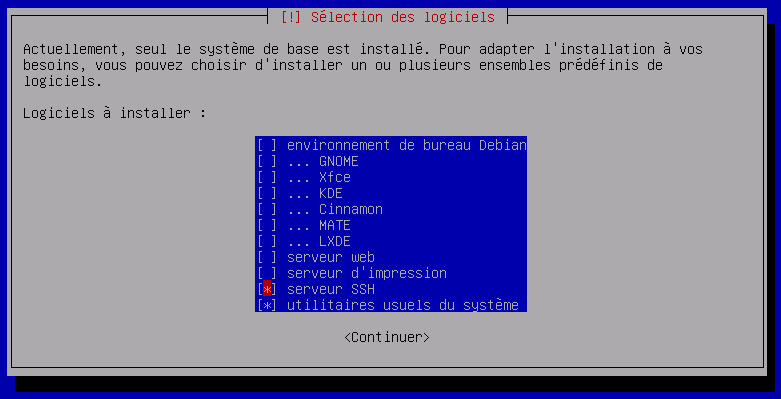
Now it gets a little more complicated: you need to deselect “Debian desktop environment” by pressing the spacebar and select “SSH server” by pressing the spacebar (use the arrow keys to navigate), then confirm by pressing Enter:
Let’s confirm again:
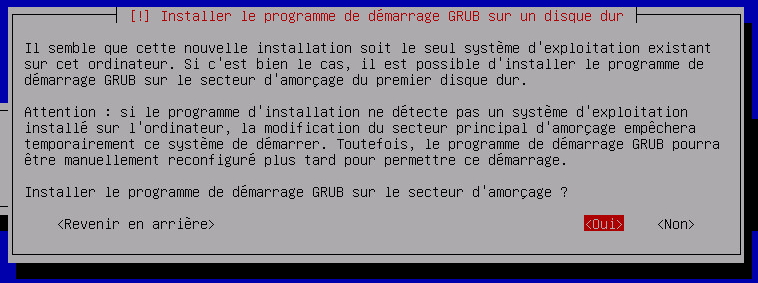
Select /dev/sda and then confirm:
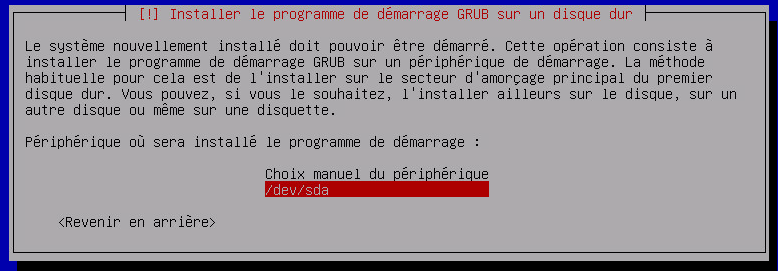
Now all you have to do is remove the USB drive, CD-ROM, or virtual CD-ROM and press Enter:
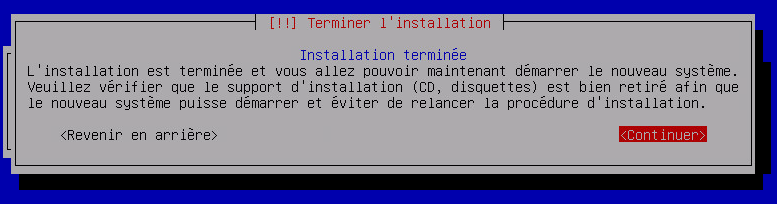
That’s it—your Debian installation is complete. You can stop the tutorial here if you’d like, or follow the next steps to make a few system changes (especially useful for Jeedom).
Optimization for Jeedom
To prepare for the Jeedom installation, you can make a few optimizations:
Add vim and sudo
sudo apt-get install -y vim sudo
Add fail2ban
Fail2ban is a program that helps secure access to your Debian system; if there are too many failed login attempts, it blocks access from the IP address in question (so not everyone, just the attacker) for a certain amount of time.
sudo apt-get install -y fail2ban
Add Open VMware Tools
Open VMware Tools installs drivers specific to the installed operating system and provides optimizations for that OS running on an ESXi hypervisor.
sudo apt-get install -y open-vm-tools
All you have to do now is install Jeedom by following this