Setup on Freebox Delta
You can install Jeedom on Freebox Delta using the VM system.
Connecting to Delta
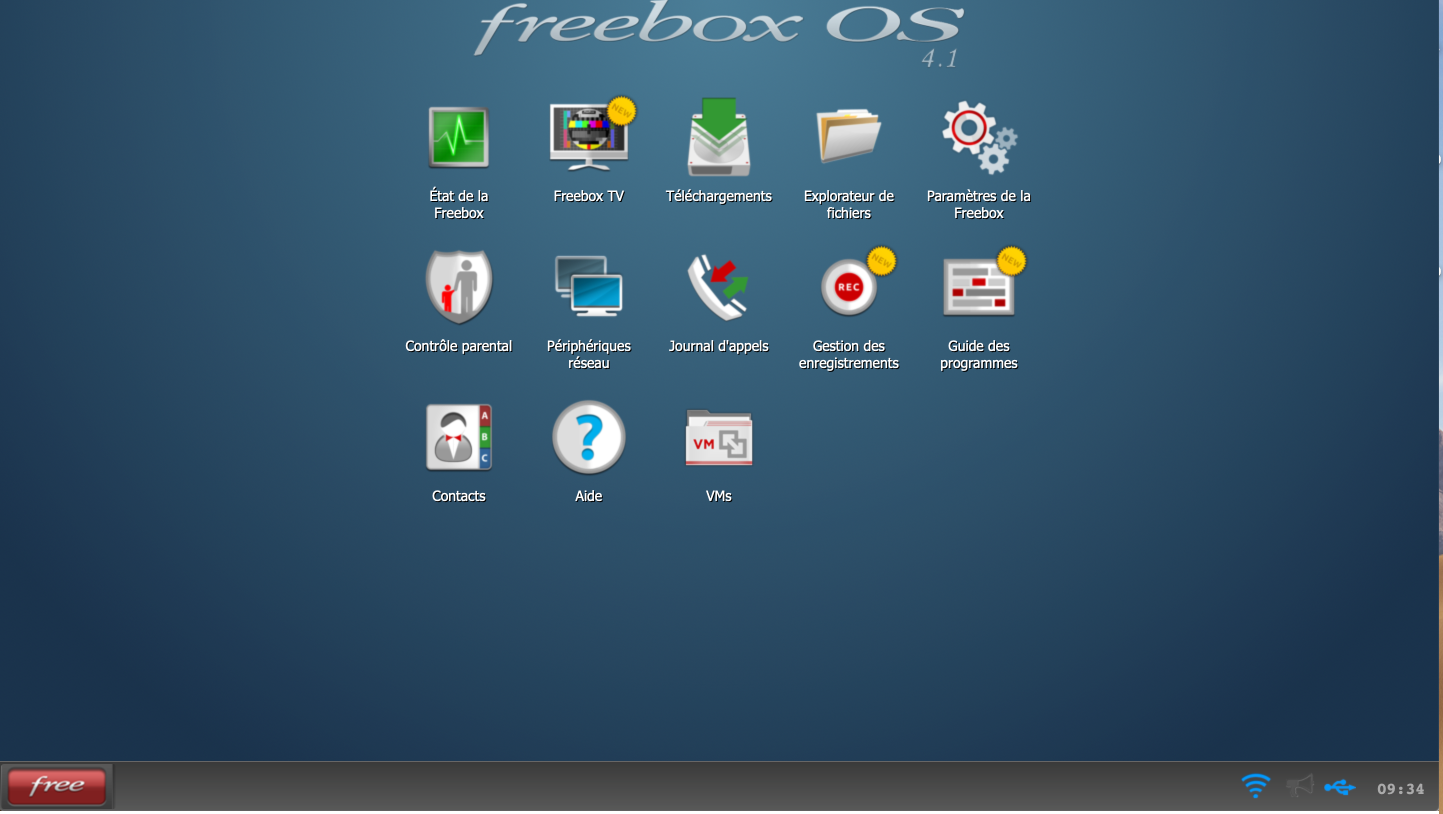
Go to the configuration interface for your Freebox Delta. Then click on VMs.
Configure the various options
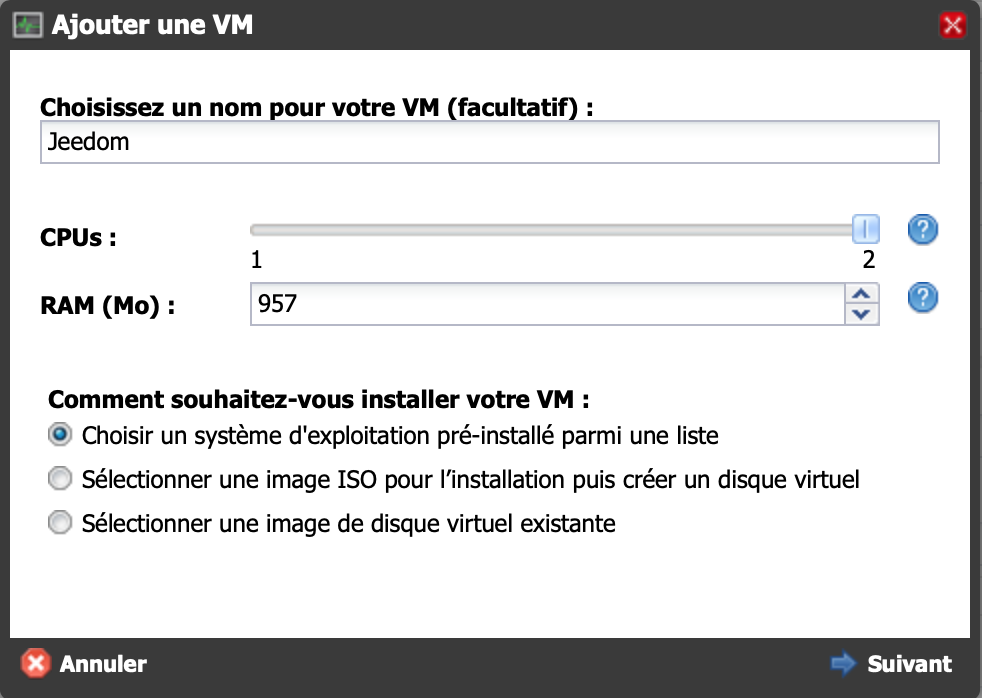
Click “Add a VM”

Configure the specifications. We recommend using 2 CPUs and the maximum amount of RAM.
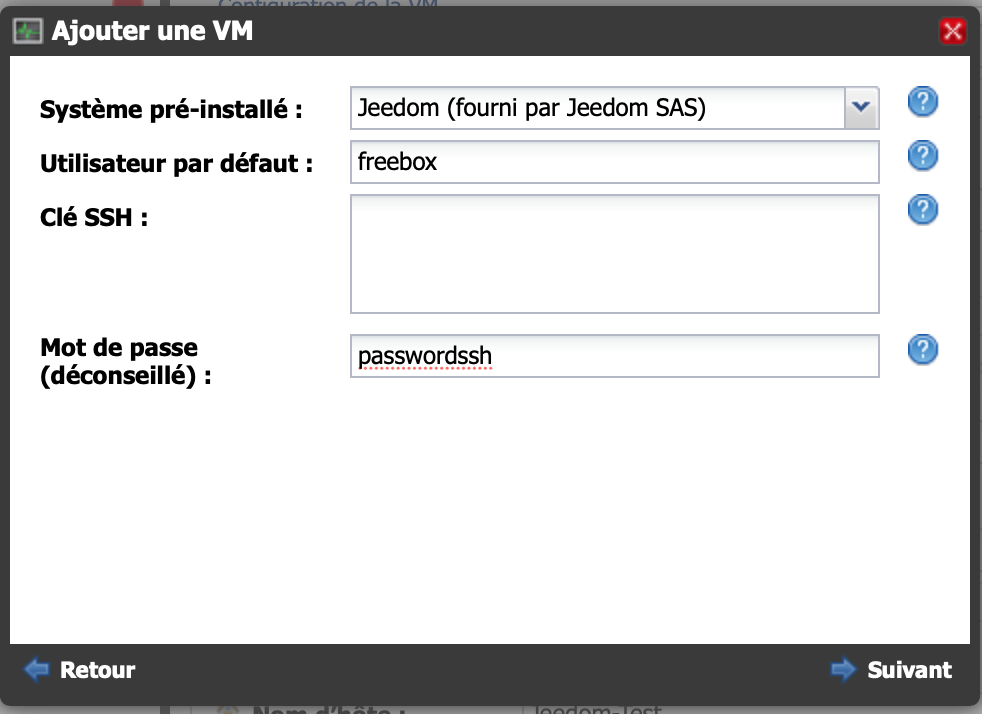
Set up the username and password; be sure to remember them, as you’ll be asked for them when connecting via SSH:
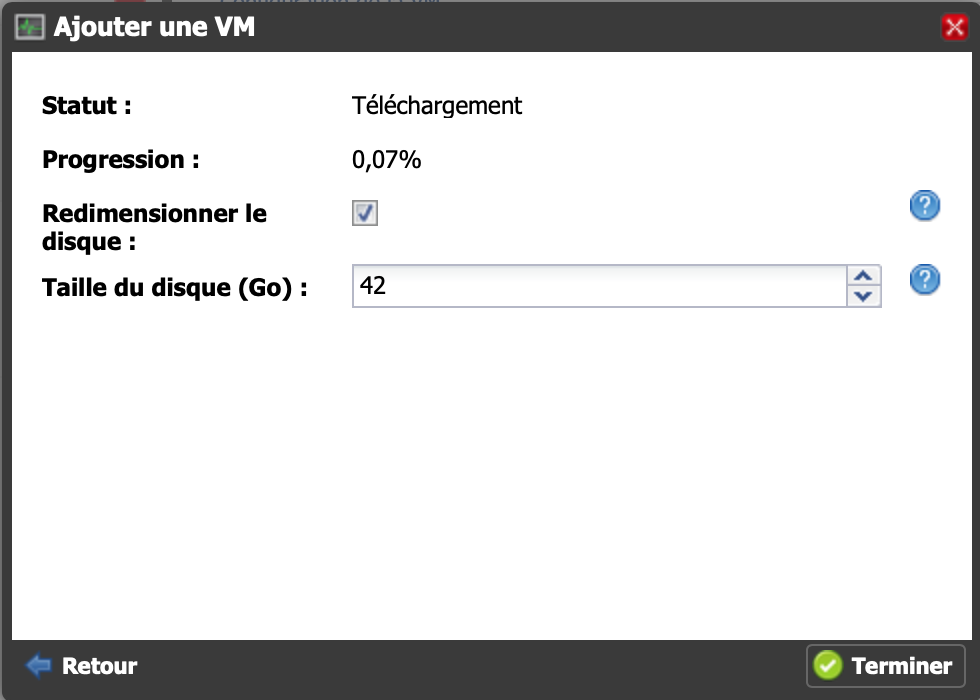
Installation in progress
Please wait while the image downloads
Log in to your Jeedom
You can log in using the address provided on the page:
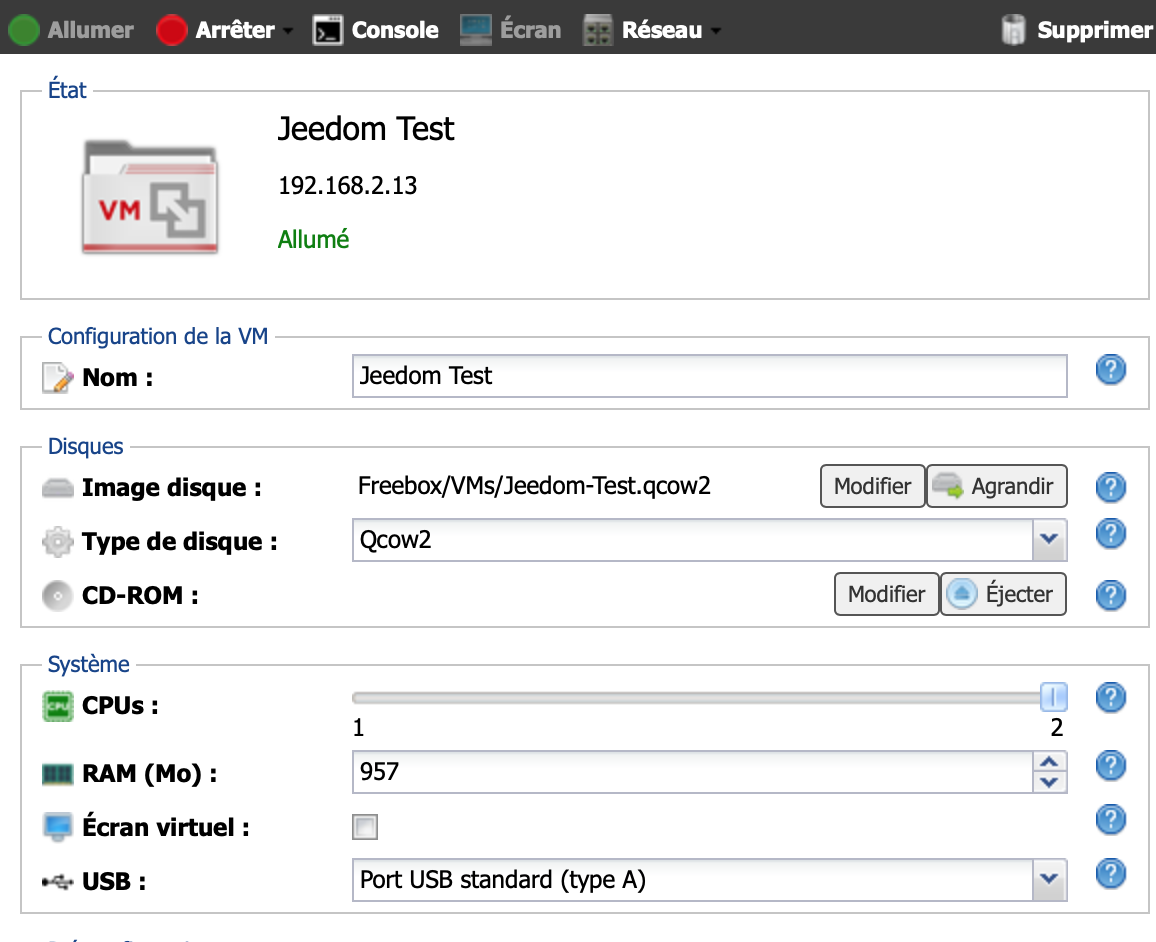
Be sure to assign the Delta’s USB port to the VM if you want to use an antenna.
Do not check “Screen”; this serves no purpose on the Jeedom screen (other than wasting power).
The IP address of your Jeedom on the Freebox Delta is listed at the top, below its name.
The default username and password are admin/admin when you access Jeedom through your browser.
For the next steps, please refer to the documentation Getting Started with Jeedom