Getting Started with Jeedom
This documentation outlines the steps to follow after setting up your Jeedom box.
Interface
Your Jeedom instance can be accessed via its web interface at its address on the local network.
Local access
To access the Jeedom interface, you need to know the IP address or hostname of the device on the local network. Here are several ways to find it:
Automatic discovery
The Jeedom Marketplace offers a discovery tool for retrieving the IP addresses of Jeedom instances connected to the same local network.
IMPORTANT
The box must have been running for several minutes for Jeedom discovery to work.
In addition, this feature depends on the local network configuration and may not be available under certain conditions.
Router
You can find the IP address of your Jeedom box by accessing the administration interface of your router or internet box.
Most systems provide a list of connected devices, including their host names, MAC addresses, and IP addresses. Look for a device named “Jeedom” or identify it by its MAC address.
IMPORTANT
If you have trouble accessing the router’s administration interface, refer to the manufacturer’s manual.
Hostname
The Jeedom interface can also be accessed using the machine’s hostname.
- If you are using a official system image To deploy Jeedom, the hostname is known, and Jeedom must be accessible at:
| Machine | Jeedom Interface |
|---|---|
| Luna | http://jeedomluna.local |
| Atlas | http://jeedomatlas.local |
| Smart | http://jeedomsmart.local |
| Computer/hypervisor (automatic installation) | http://jeedom.local |
| Freebox | http://jeedomfreebox.local |
- If you installed Debian yourself, the hostname is the machine name you specified during installation (
MACHINE).DOMAIN = localby default, or the specific domain name entered during installation, if applicable.
The Jeedom interface address should normally be: http://MACHINE.DOMAIN.
System console
For the past official system image, any direct access to the console immediately displays the Jeedom interface address:
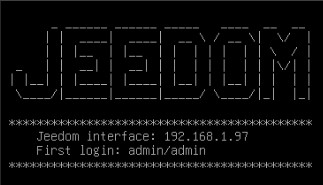
The IP address can also be displayed by entering the following command:
ip addr | grep 'inet ' | tail -n 1
First connection
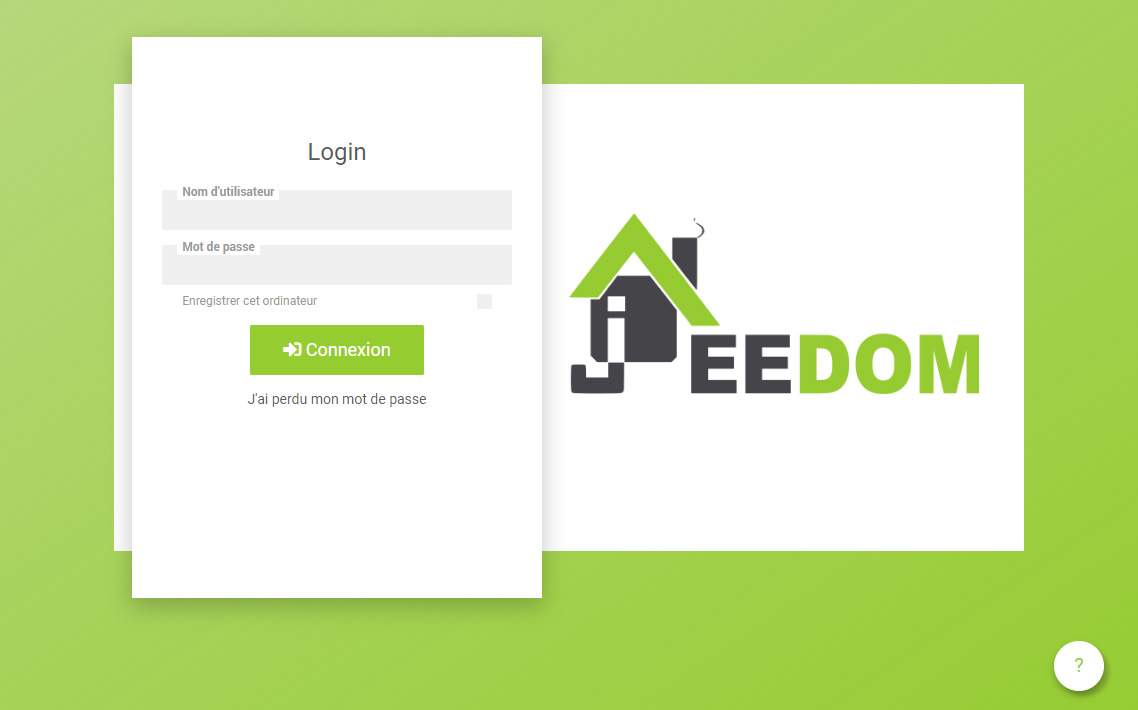
Once you know the Jeedom address, enter it in your web browser to access the login page:
IMPORTANT
The default credentials are:
admin/admin.
When you log in with the default credentials, Jeedom prompts you to change your password admin. Simply enter the new password twice to secure this user’s access.
It is also possible to change the user’s password admin by clicking the Password button on the user management page (accessible via the Settings → System → Users menu):

IMPORTANT
Be sure to remember the new password; it allows you to log in to the Jeedom interface.
Market
The marketplace lets you easily browse, install, and even publish plugins, register your Jeedom instances, and take advantage of Jeedom services, among other things.
Sign Up
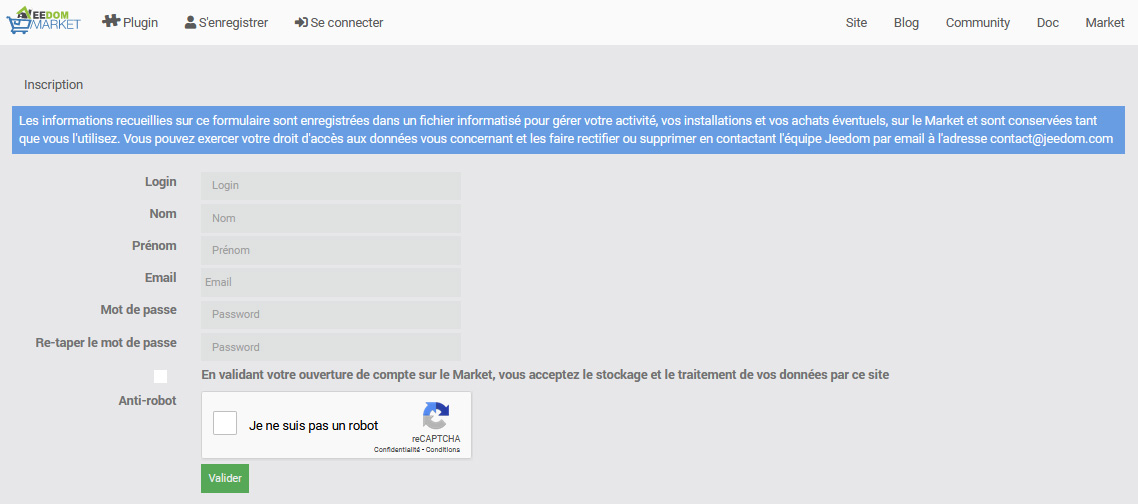
To create an account on the Jeedom Marketplace, simply Fill in the required fields on the registration page :
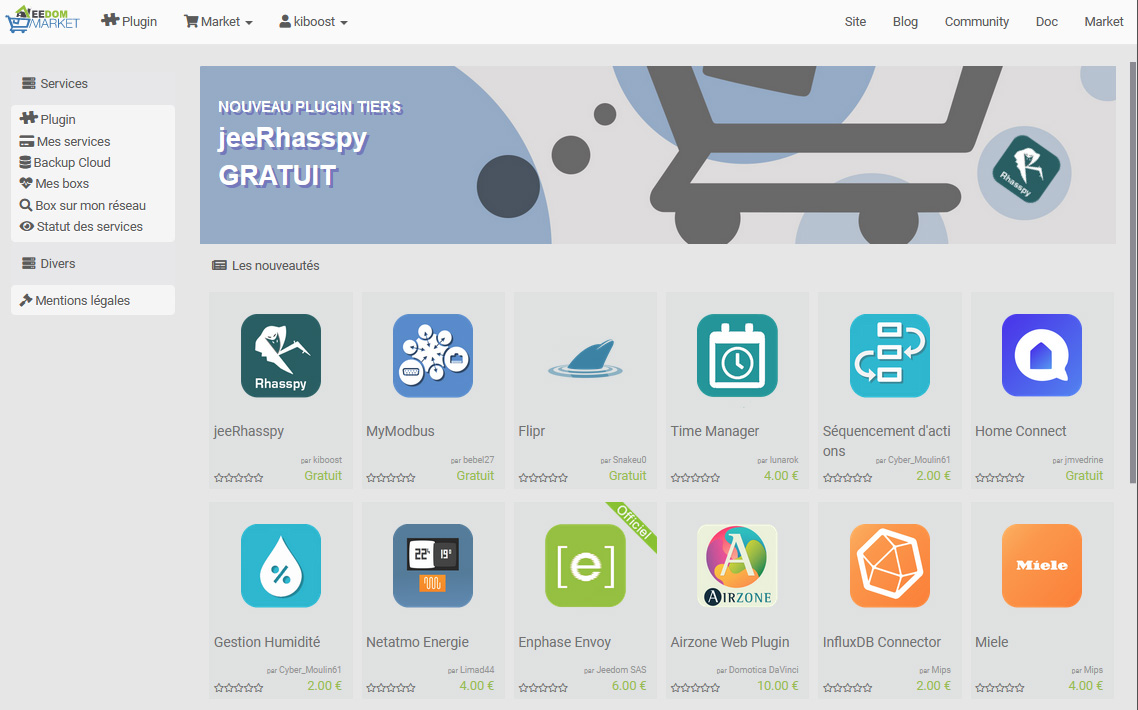
After verification, you will be logged in to your account and redirected to the home page:
Service Pack
Official Jeedom boxes come with a Service Pack code, sent via email, which gives you access to free plugins and services.
To activate your Service Pack, enter this code when prompted after clicking the I have a code button on the tab My services on your Market profile.
INFORMATION
Please contact your reseller if you have not received a Service Pack code after purchasing an official Jeedom box.
Connection to Jeedom
To enable your Jeedom instance to communicate with the market, you must enter your profile credentials in the general settings via the Settings → System → Configuration menu.
Next, go to the Updates/Market tab, then the Repository Settings: Market sub-tab, and fill in the following fields before saving:
- Enable Market: check the box
- Address:
https://market.jeedom.com - Username: your Market profile ID
- Password: your Market profile password
INFORMATION
You can click the Test button to verify that the connection is working properly.
Remote access
Whether you have a Service Pack or have subscribed to the Easy Remote Access service (Jeedom DNS), Jeedom generates a remote access address that allows you to connect to it from outside the local network.
To enable this service, simply go to the Settings → System → Configuration menu, then select the Networks tab:
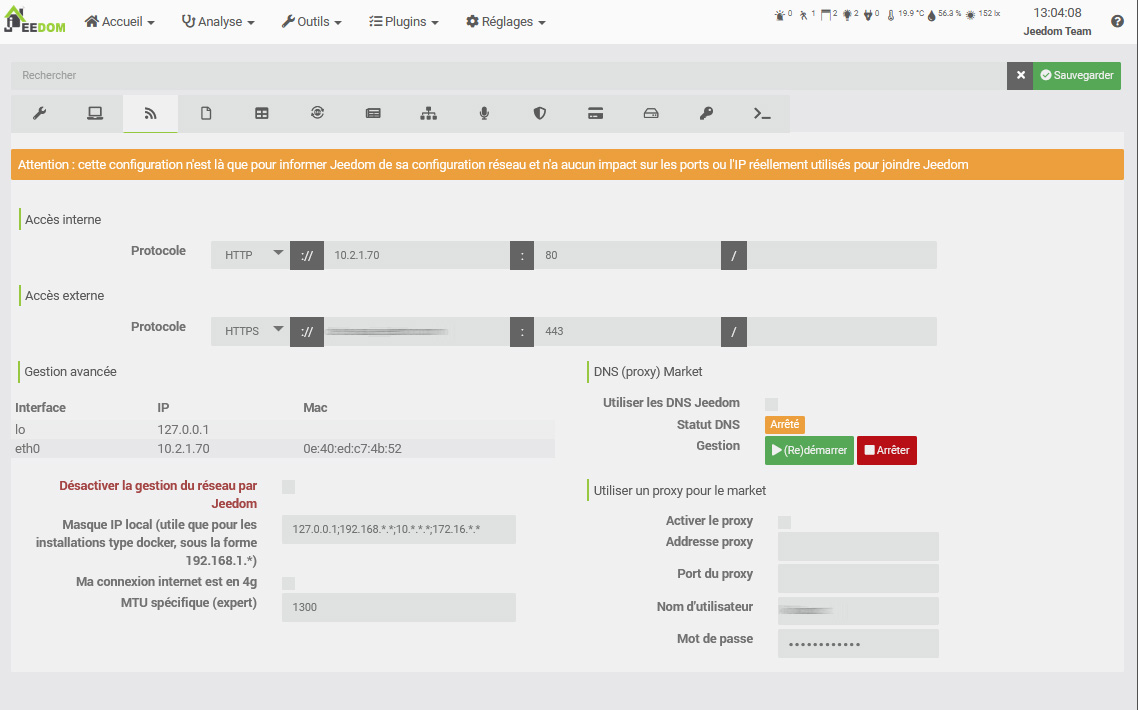
Check the Enable Jeedom DNS box, then click the (Re)start button. After a few moments, once the service has started, the remote access address will appear on the screen.
INFORMATION
Depending on the circumstances, it may take several hours for remote access to become fully operational.
You can customize the remote access address by clicking the Configuration button for the service from Your market profile.
Find all the details in Documentation for the Remote Access service - Jeedom DNS.
Create My First Object
You’re about to create your first object, but first you need to know what an object is.
In Jeedom, this can be anything and everything, but it’s recommended that you organize it based on your rooms.
Tip
It is possible to define relationships between objects. Example: The living room belongs to the “ground floor” object, which in turn belongs to the “house” object.
Creating an object couldn’t be easier:
- Go to Tools → Objects.
- Click the Add button.
- Jeedom will ask you to enter a name for it. Confirm. Here is your first object:
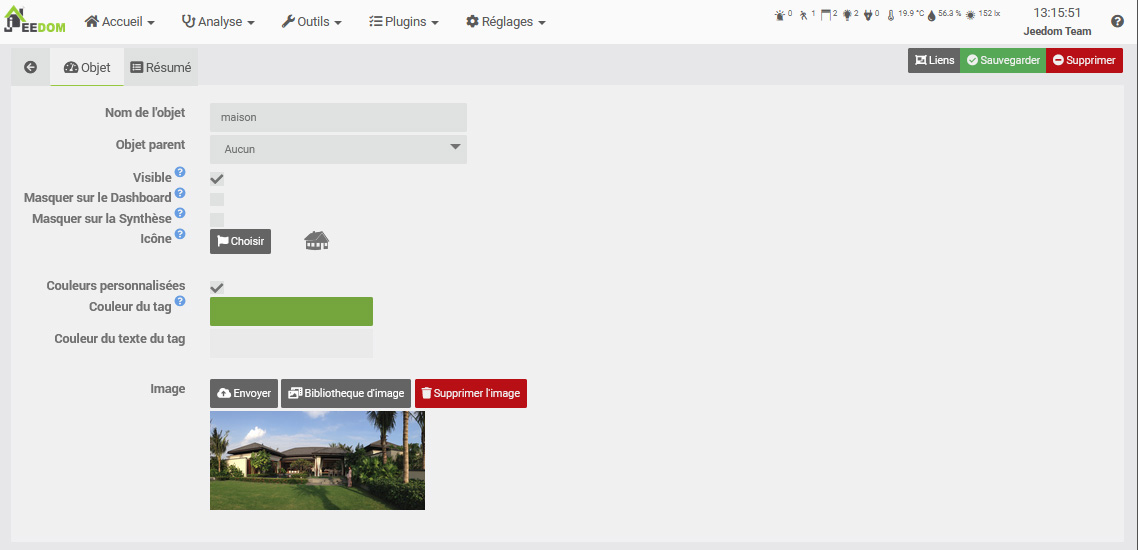
For more information on this section, see User Manual -> Object.
Install My First Plugin
A plugin allows you to add features to Jeedom. There are hundreds of them. Many are free, while others may require a fee. To access the plugins page, go to Plugins → Plugin Management.
Then simply click on Market:
You’ll then see a list of all the plugins you can install.
Important
Please note that some plugins are official and others are not. If you encounter any issues with an unofficial plugin, the Jeedom team cannot be held responsible.
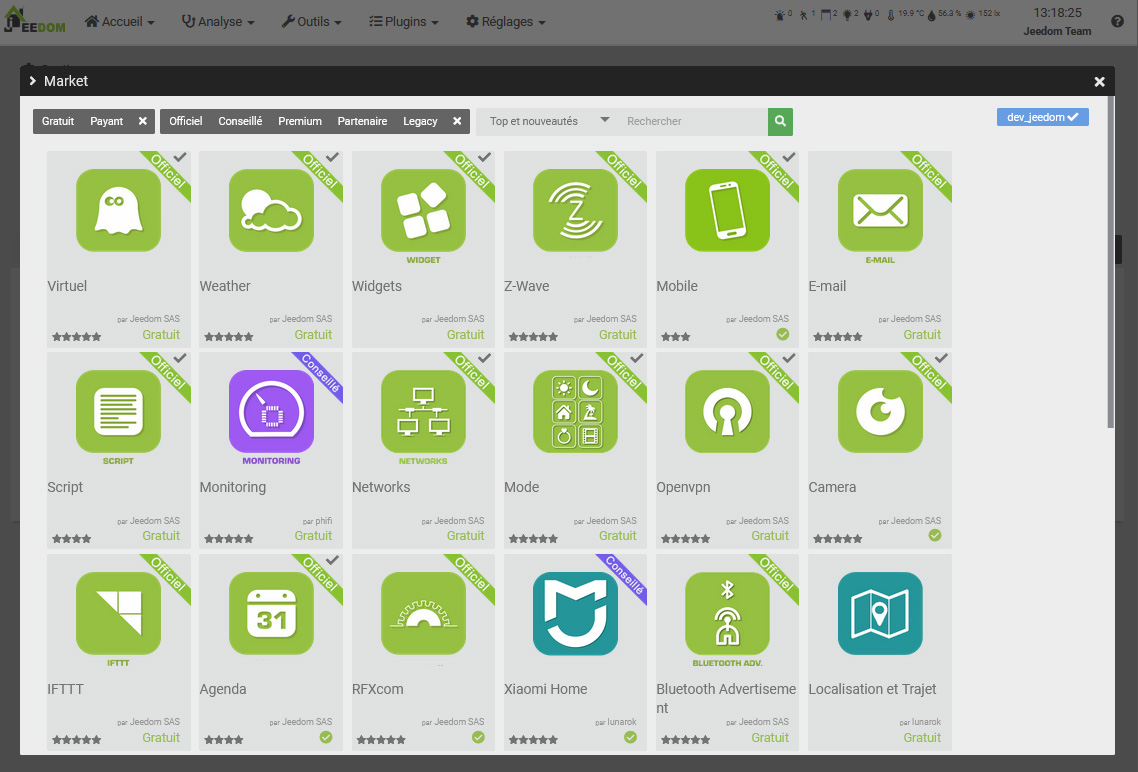
When you click on a plugin, you’ll see its details page:
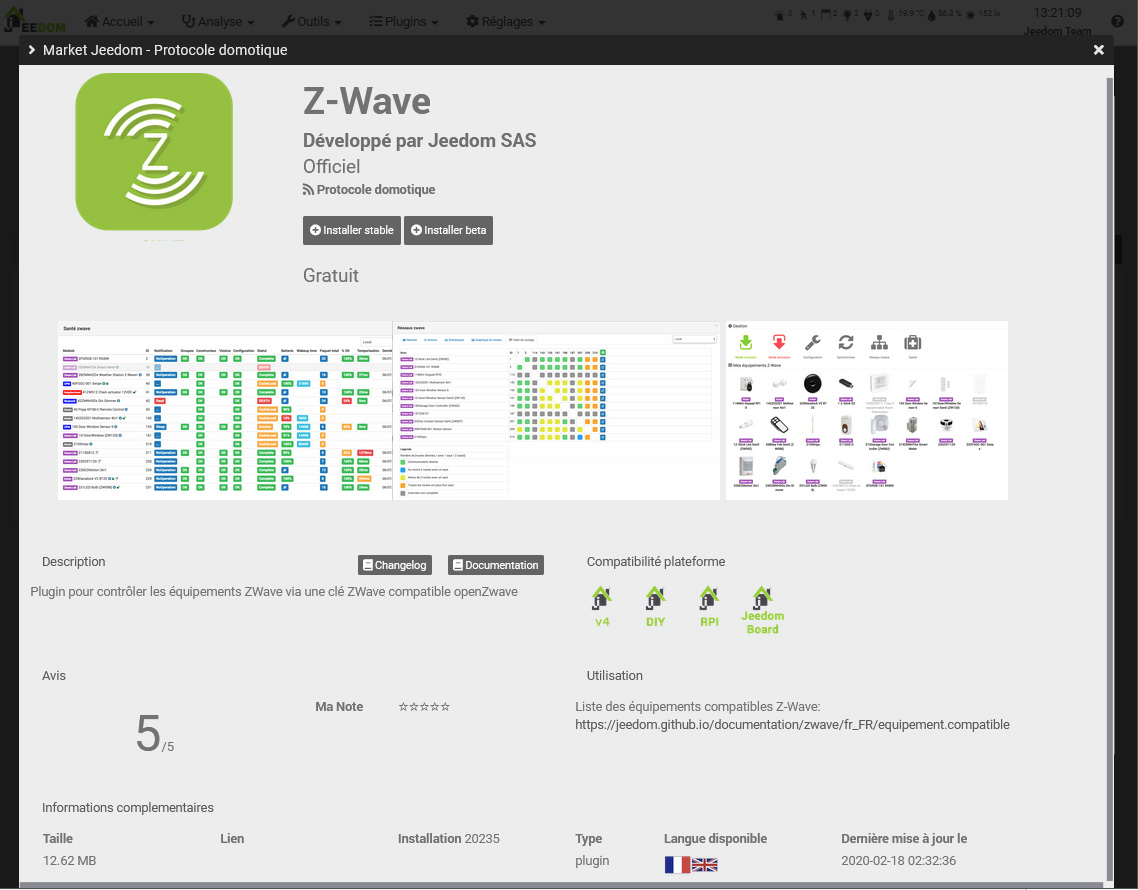
You will then find:
- Buttons to install the plugin: the stable version is highly recommended,
- A button to remove the plugin,
- A brief description,
- A link to the plugin’s documentation,
- A link to the changelog (the latest changes made),
- Compatibility with various platforms,
- User reviews,
- How to use the plugin,
- Additional information such as the author, a link to the forum discussion about this plugin, the date of the last update, etc.
For more information on plugins, see User Manual -> Plugins.
Support
Jeedom covers a wide range of fields that are evolving day by day. However, there are many ways for you to get help and ask questions.
The forum
You’ll find it here.
The forum is very active and contains a wealth of information. If you have a question, feel free to ask. You’ll get a response in less than an hour (on average). Please note, however, that the forum is maintained by the Jeedom community—made up of volunteers—and not by the Jeedom company.
Support requests (or tickets)
Important
Please note: You must have an account on the Market to submit a support request.
If you haven’t found a solution to your problem, as a last resort, you can submit a support request to the Jeedom team. This request is submitted via a support ticket. There are several ways to open one:
- Directly from Jeedom (recommended method): Settings menu → Request Support.
- If for any reason you don’t have access to your Jeedom, you can always open a support ticket from the Market:
- either by clicking on your name and then on Support Request,
- either by going to your profile, then to the Tickets section, and using the “Open a support ticket” button.
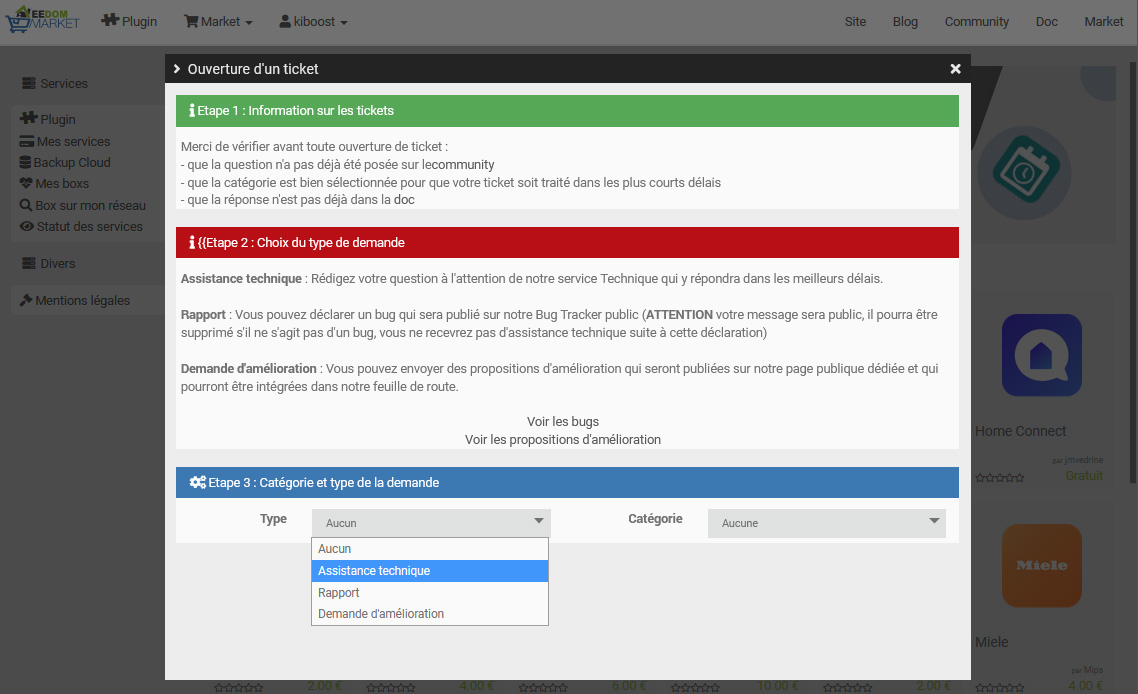
All further communication will take place via email.
Tip
If, when opening a ticket, you receive an error message stating that you have reached your quota, it means you are limited to a certain number of support requests per month, depending on your Service Pack.
The various Service Packs are:
- Community (free): 2 tickets/month (for paid plugins only)
- Power: 10 tickets/month
- Pro: 100 tickets/month
You can find details about the service packs here.
IMPORTANT
Please note: We’ve noticed many users with “mailinblack” email accounts, which, during the first exchange, ask the sender to click a link to prove they’re human. This system is not compatible with our ticketing system, so even if we reply to you, you’ll never receive the response in your inbox because the system blocks it. Please make sure to enter an email address on your Market profile page that does not use this system; otherwise, you will never receive our reply.