Installation on a PC/mini-PC
The following procedure is based on the use of a system image file that includes Debian and Jeedom preinstalled.
INFORMATION
To manually install Jeedom on a Debian system, refer to the documentation regarding Command-line installation.
System Image Download
The Jeedom team provides optimized system images for 64-bit computers.
The first step is to download the system image you want to install:
INFORMATION
View Related documentation For more details on Jeedom system images.
Burning the system image
The file you downloaded earlier must be written to a bootable medium, such as a USB flash drive.
INFORMATION
If you’re not familiar with any burning software, you can use balenaEtcher.
To burn the disc, simply follow the procedure described by the publisher of the software you are using.
Once the system image has been burned to the bootable media, all you have to do is boot from it.
IMPORTANT
If you have trouble booting from the USB drive, refer to your hardware’s documentation regarding BIOS boot options.
Installation Options
Various installation options appear on the screen after booting the computer from the media containing the system image:
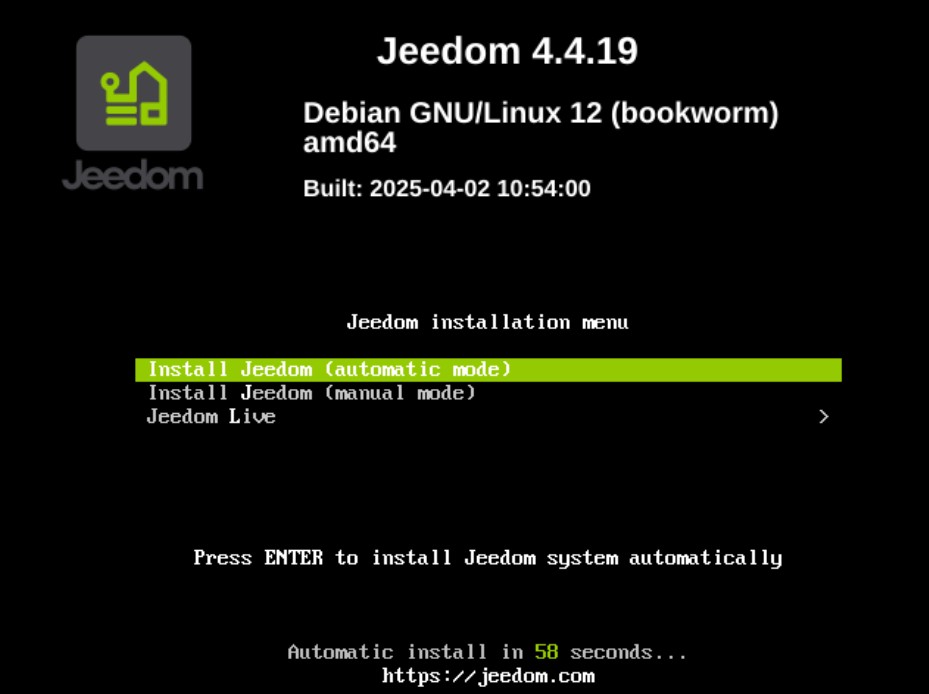
- Install Jeedom (automatic mode): installs the system automatically without any user intervention required. The machine is turned off at the end of the operation.
IMPORTANT
This mode is activated by default after 60 seconds, so the installation can be completed without connecting a monitor.
-
Install Jeedom (manual mode): In this mode, you must manually enter the configuration settings for the system you are installing (language, country, network, storage medium, etc.).
- Jeedom Live: allows you to test Jeedom in a non-persistent environment without installing the system.
INFORMATION
This feature is available starting with Debian 12 Bookworm.
Hardware Compatibility
A non-exhaustive list of computers supported by Jeedom can be found at Compatibility documentation
First connection
View the documentation related to First login to access the Jeedom interface after installation.