Installation on a virtual machine
The following procedure is based on the use of a system image file that includes Debian and Jeedom preinstalled.
INFORMATION
To manually install Jeedom on a virtual machine running Debian, refer to the documentation regarding Command-line installation.
Creating the VM
You most likely already have a hypervisor set up to read this documentation. Although the process for creating a virtual machine (VM) is fairly similar across different solutions, it is, of course, essential to follow the documentation specific to the platform you are using.
To name a few well-known hypervisors as examples:
- VirtualBox : A free, open-source Type 2 hypervisor, ideal for test environments or workstations. Compatible with Windows, macOS, and Linux.
- VMware : A wide range of hypervisors, including VMware Workstation (type 2) for workstations and VMware ESXi (type 1) for servers. A robust solution widely used in enterprises.
- Proxmox : An open-source platform based on KVM (type 1) that combines full virtualization with LXC containers. Well-suited for servers, professional environments, and home labs.
- Hyper-V : Microsoft’s native hypervisor integrated into Windows Server and the Pro/Enterprise editions of Windows.
VM Configuration
There isn’t really a recommended configuration for Jeedom, as it depends on the load on each instance.
For a robust machine that isn’t overly large, we can agree that the following values are sufficient in most cases:
| CPU | Memory | Storage |
|---|---|---|
| 2 cores | 2048 MiB | 16 GiB |
Booting from the system image
The Jeedom team provides optimized system images for 64-bit computers.
Before starting the virtual machine, you must download the system image you want to install (some hypervisors allow you to download the file directly from its URL):
INFORMATION
View Related documentation For more details on Jeedom system images.
The image file in the format iso must then be loaded into the optical drive (CD/DVD) emulated by the virtual machine, which is set as the first device in the boot order.
IMPORTANT
If you encounter any difficulties, refer to the hypervisor documentation.
Installation Options
Various installation options appear on the screen after you start the virtual machine with the system image loaded into the optical drive:
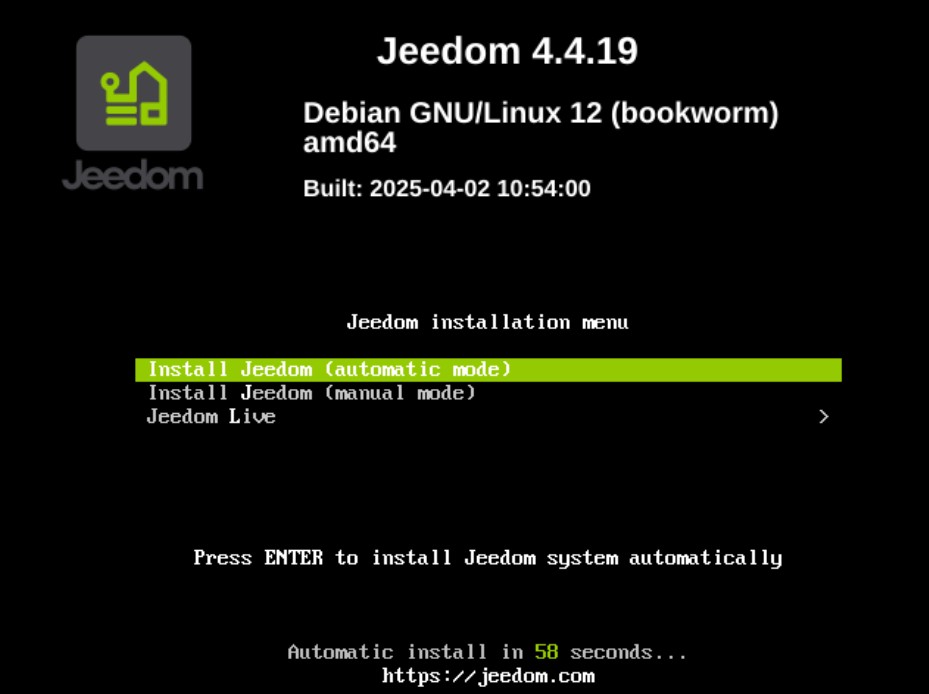
- Install Jeedom (automatic mode): installs the system automatically without any user intervention required. The machine is turned off at the end of the operation.
IMPORTANT
This mode runs by default after 60 seconds, so the installation can be completed without connecting to the virtual screen.
-
Install Jeedom (manual mode): In this mode, you must manually enter the configuration settings for the system you are installing (language, country, network, storage medium, etc.).
- Jeedom Live: allows you to test Jeedom in a non-persistent environment without installing the system.
INFORMATION
This feature is available starting with Debian 12 Bookworm.
Hardware Compatibility
A non-exhaustive list of hypervisors supported by Jeedom can be found at Compatibility documentation
First connection
View the documentation related to First login to access the Jeedom interface after installation.