Greenwave PowerNode - 6 sockets
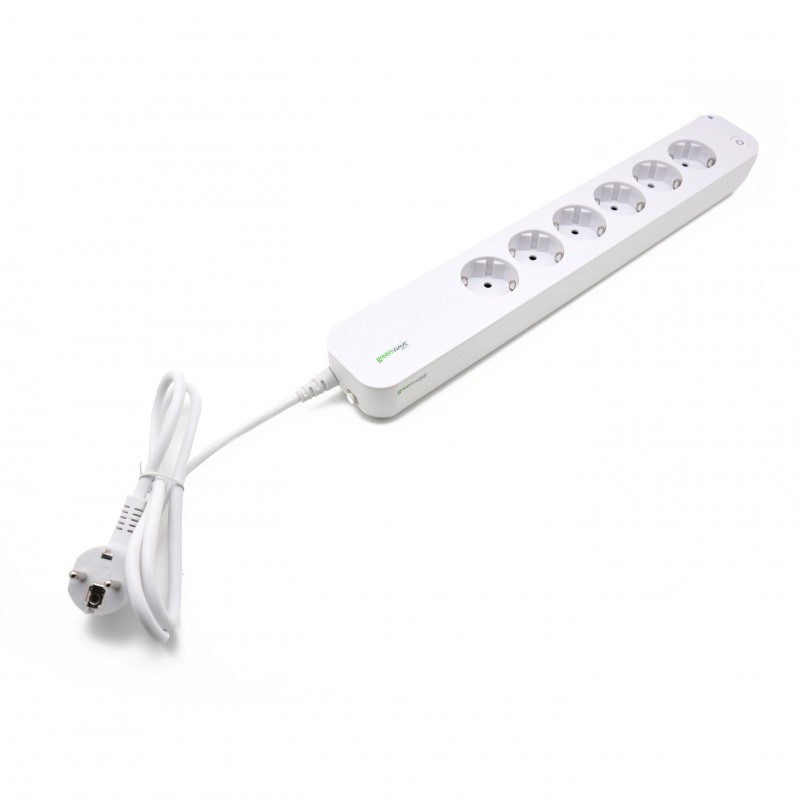
The module
The Jeedom visual
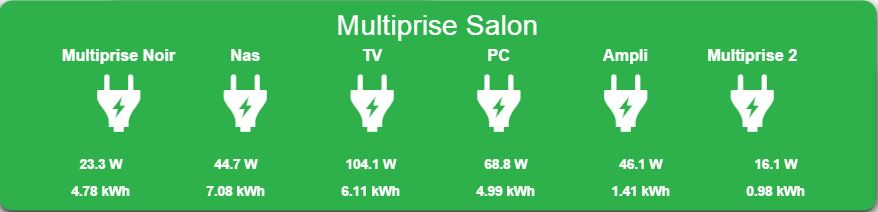
Summary
The GreenWave PowerNode Power Strip is a smart device that connects to your appliances and electronics to allow you to monitor and control the power consumption of your devices remotely via a web browser or smartphone. Using Z-Wave technology, the PowerNode power strip is compatible with most home automation boxes on the market such as Fibaro Home Center 2, eedomus or Zipabox. Equipped with 6 ports, it can independently control 6 different electrical devices with a total power of 10A.
The PowerNode power strip collects data on the energy consumption of connected devices and transmits them to the home automation box. You can then control the energy consumption of each connected device. This power strip also allows you to activate or deactivate devices remotely via a web browser or smartphone or to define a calendar to automatically activate or deactivate your devices at predefined times. A small wheel on the side of the power strip allows you to choose a color that will represent the room to which the power strip is assigned. For example “blue for the bedroom “. This tip will allow you to differentiate your different PowerNode multiple sockets. You can also set this dial on a padlock. This function allows you to lock the power strip in order to avoid turning it off by accident, but control from the home automation box will no longer be possible.
The PowerNode power strip also has a light status indicator which gives different information depending on its color : sockets on or off, limited radio range, inclusion and exclusion mode.
PowerNode power strip is equipped with overcurrent protection to protect connected devices. PowerNode will disable ports in the event of a faulty device or a short circuit. Additional protection is provided by the internal fuse located in the power strip.
This power strip is ideal for controlling multimedia devices in a TV cabinet or for controlling computer equipment located in an office and thus avoiding having to use 6 individual Z-Wave sockets.
Fonctions
- 6-port Z-Wave power strip
- Enables monitoring of consumption of connected devices
- ON / OFF function
- Possibility of assigning it a number and a color in order to differentiate the different PowerNodes of the same installation.
- On / Off button directly on the power strip
- Overcurrent protection
- Light status indicator
Technical characteristics
- Food : 250V AC, 50Hz
- Maximum charge current : 10A
- Maximum load power : 2400W (@ 240V)
- Standby consumption : 0.4 W
- Measurement accuracy : ± 0.1W
- Overcurrent protection : 10A internal fuse
- Plug type : DIN49440 / EEC 7/7 (Schuko)
- Z-Wave Radio Frequency : 868.42MHz
- Maximum range Z-Wave : 30m
- Operating temperature : 0 ° C to + 25 ° C
- Storage temperature : -20 ° C to + 60 ° C
- Maximum humidity : 5% to 90%
- IP class (Humidity tolerance) : IP20
Module data
- Mark : GreenWave
- Name : GreenWave \ [6 x sockets ]
- Manufacturer ID : 153
- Product Type : 3
- Product ID : 4
Configuration
To configure the OpenZwave plugin and know how to put Jeedom in inclusion, refer to this Documentation.
IMPORTANT
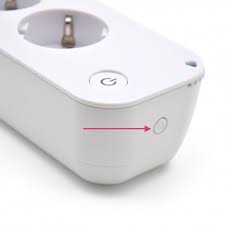
To put this module in inclusion mode, press the inclusion button on the socket.
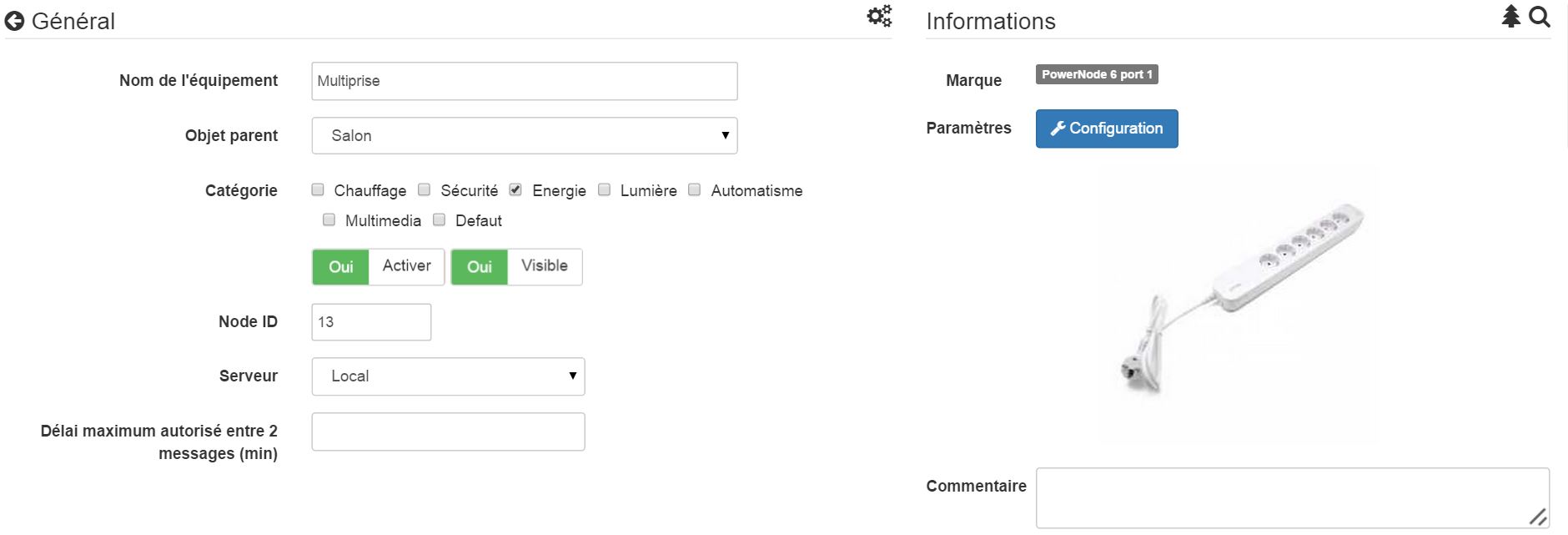
Once included you should get this :
Commandes
Once the module is recognized, the commands associated with the module will be available.
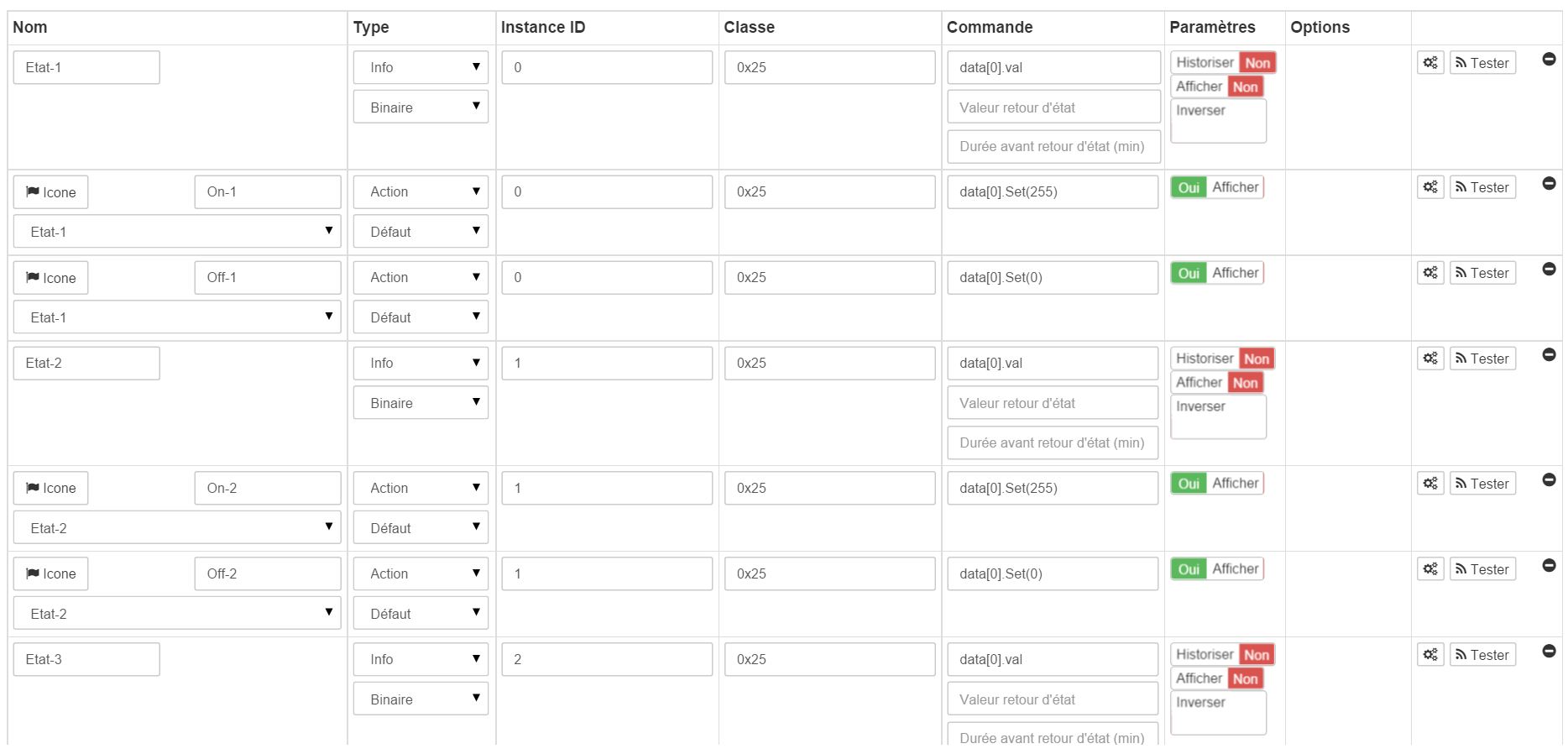
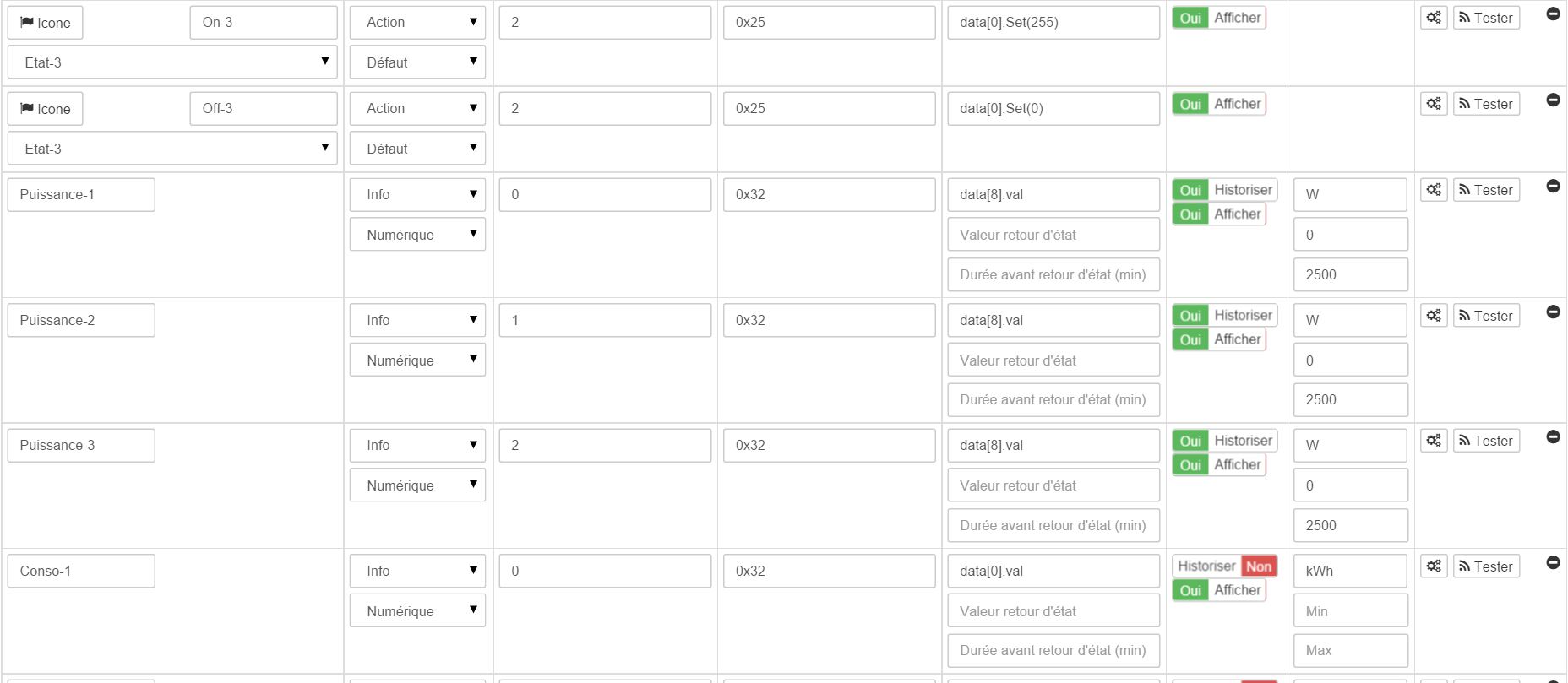
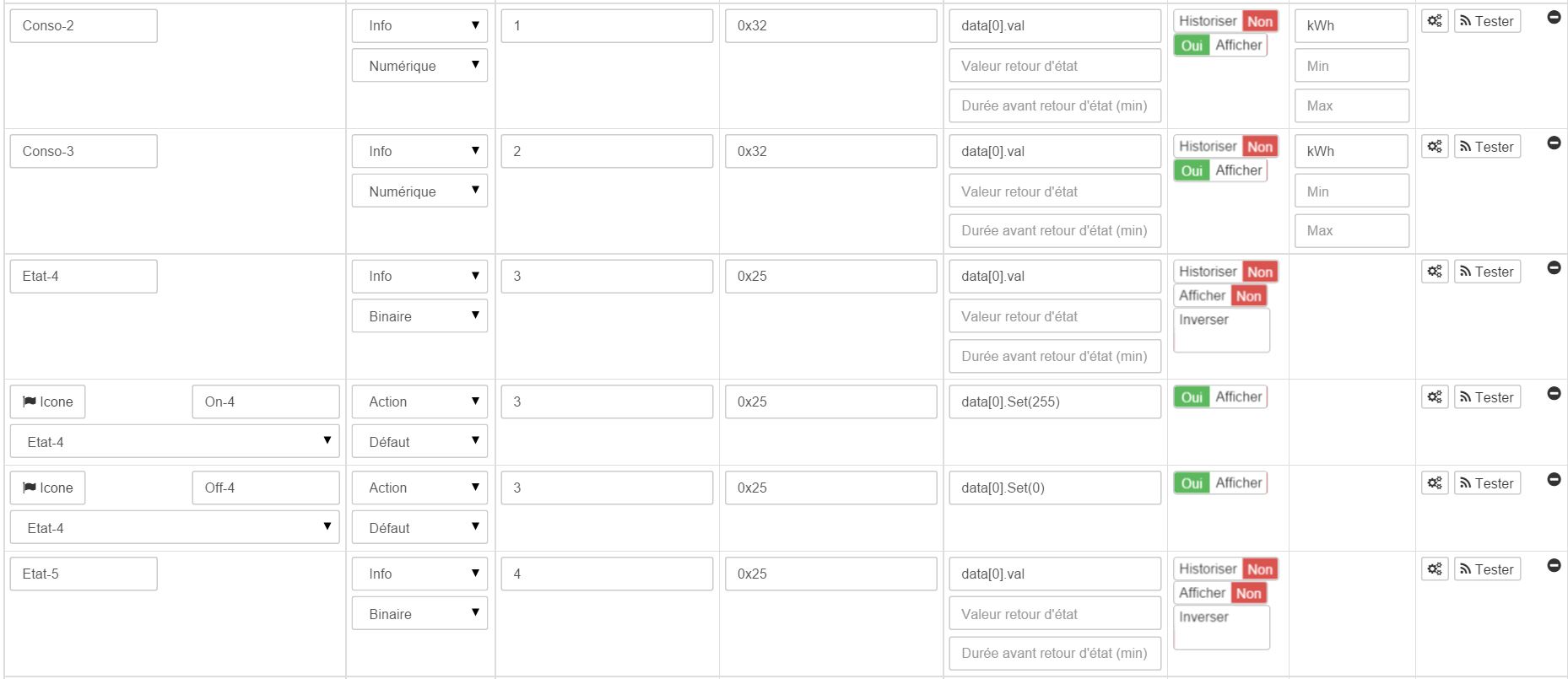
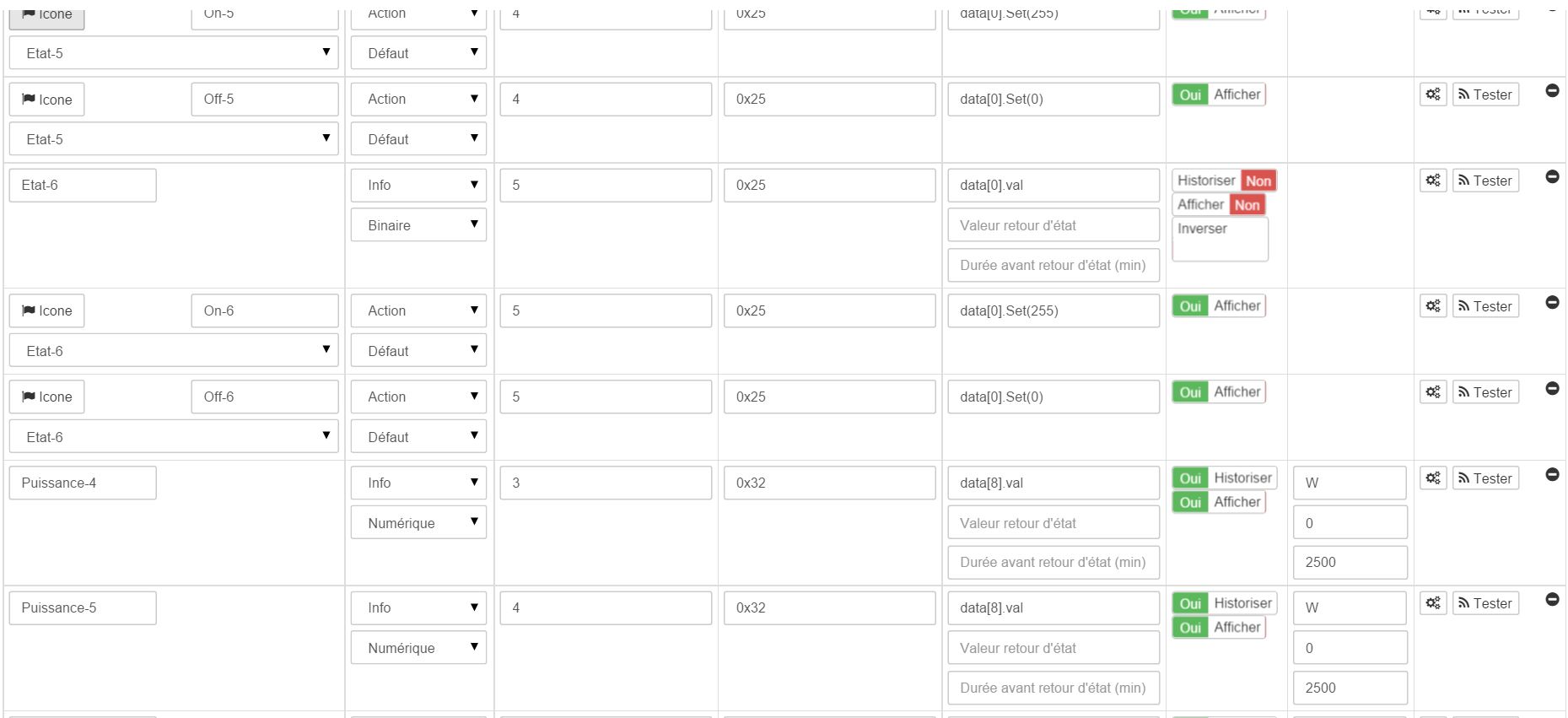
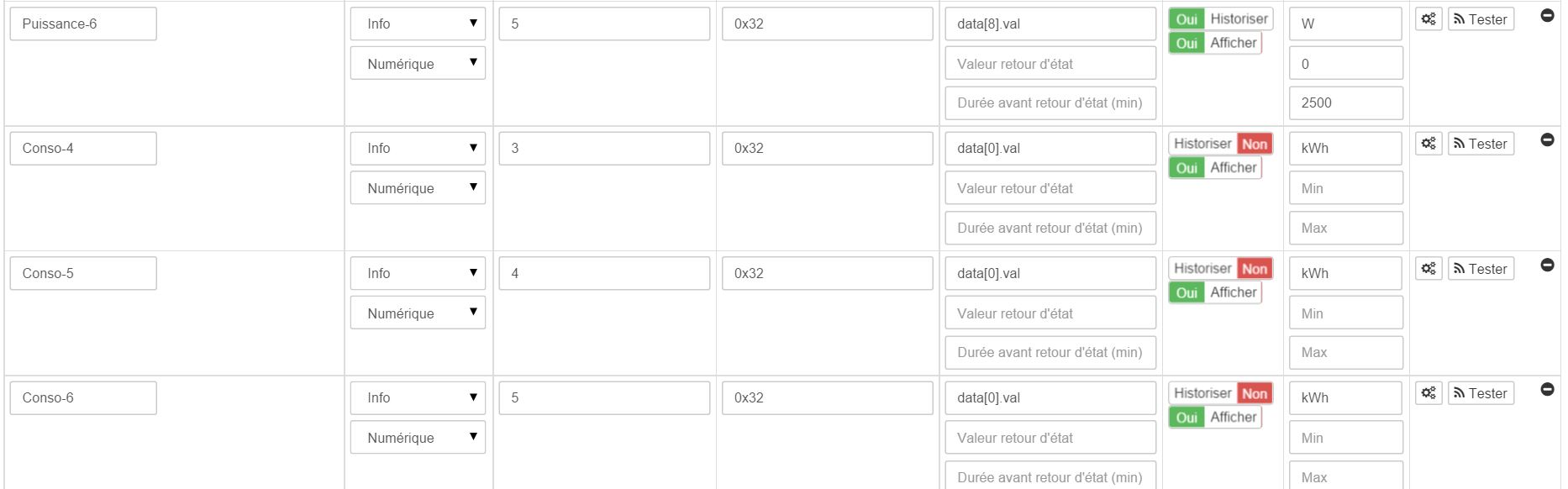
Here is the list of commands :
- State-1 : It is the command which allows to know the status of the socket 1
- On-1 : This is the command that turns on socket 1
- Off-1 : It is the command which switches off socket 1
- Power-1 : It is the command which brings up the instantaneous power consumed from socket 1
- Conso-1 : It is the command which reports the total consumption of outlet 1
- State-2 : It is the command which allows to know the status of socket 2
- On-2 : It is the command which turns on socket 2
- Off-2 : It is the command which switches off socket 2
- Power-2 : It is the command which brings up the instantaneous power consumed from socket 2
- Conso-2 : It is the command which reports the total consumption of outlet 2
- State-3 : It is the command which allows to know the status of the socket 3
- On-3 : This is the command that turns on socket 3
- Off-3 : It is the command which switches off socket 3
- Power-3 : It is the command which brings up the instantaneous power consumed from socket 3
- Conso-3 : It is the command which reports the total consumption of outlet 3
- State-4 : It is the command which allows to know the status of the socket 4
- On-4 : It is the command which turns on socket 4
- Off-4 : It is the command which switches off socket 4
- Power 4 : It is the command which brings up the instantaneous power consumed from socket 4
- Conso-4 : It is the command which reports the total consumption of outlet 4
- State-5 : It is the command which allows to know the status of the socket 5
- On-5 : It is the command which turns on socket 5
- Off-5 : It is the command which switches off socket 5
- Power-5 : It is the command which brings up the instantaneous power consumed from socket 5
- Conso-5 : It is the command which reports the total consumption of outlet 5
- State-6 : It is the command which allows to know the status of the socket 6
- On-6 : It is the command which turns on socket 6
- Off-6 : It is the command which switches off socket 6
- Power-6 : It is the command which brings up the instantaneous power consumed from socket 6
- Conso-6 : It is the command which reports the total consumption of outlet 6
Note that on the dashboard ON / OFF / STATUS commands are grouped in a single button.
Configuration of the module
You can configure the module according to your installation. To do this, go through the “Configuration” button of Jeedom’s OpenZwave plugin.

You will arrive on this page (after clicking on the Settings tab)

As you can see there is not a lot of configuration for this module.
Parameter details :
- 1 : Delays before the button flashes : minimum number of seconds between two communications (if this time is exceeded the socket button will flash)
- 2 : Selected wheel color (automatically detected)
Groupes
This module has four association groups, only the 1st group is essential.
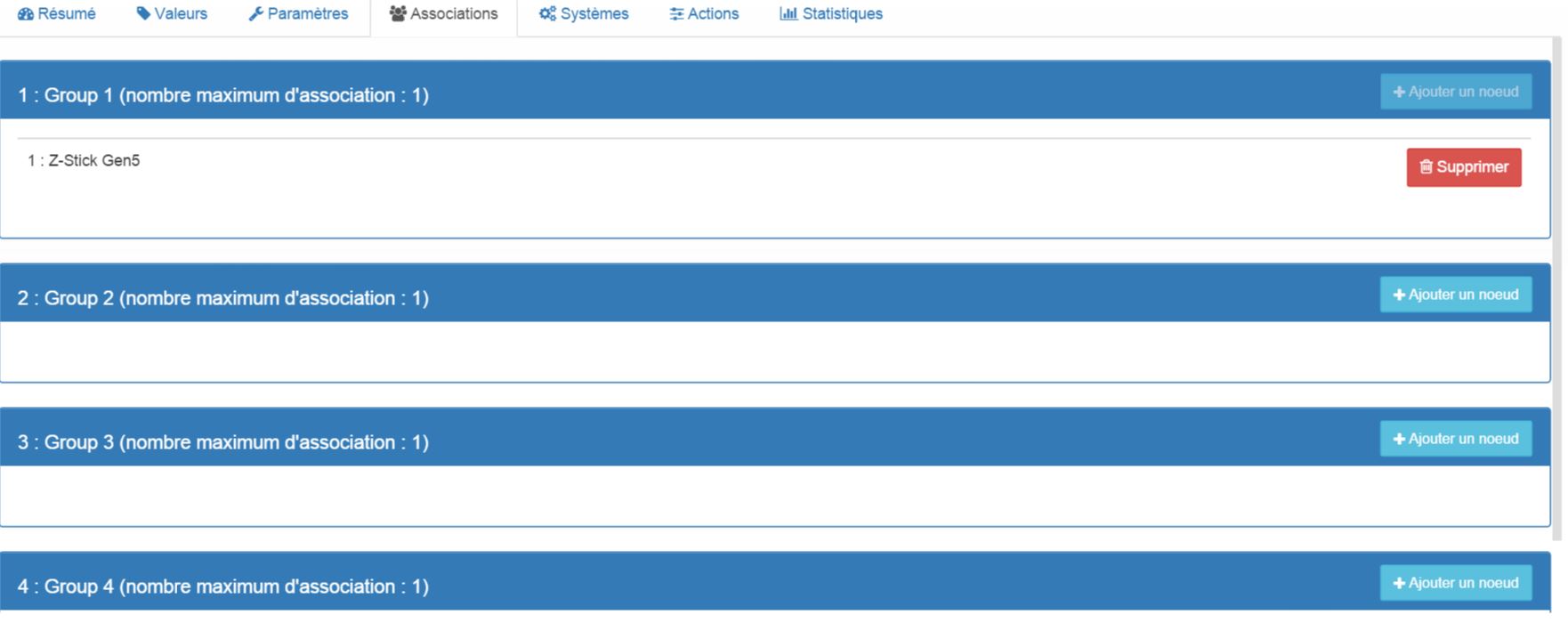
Good to know
Specificities / Polling
Unlike its little sister “Une prize”, this power strip requires polling to boost consumption.
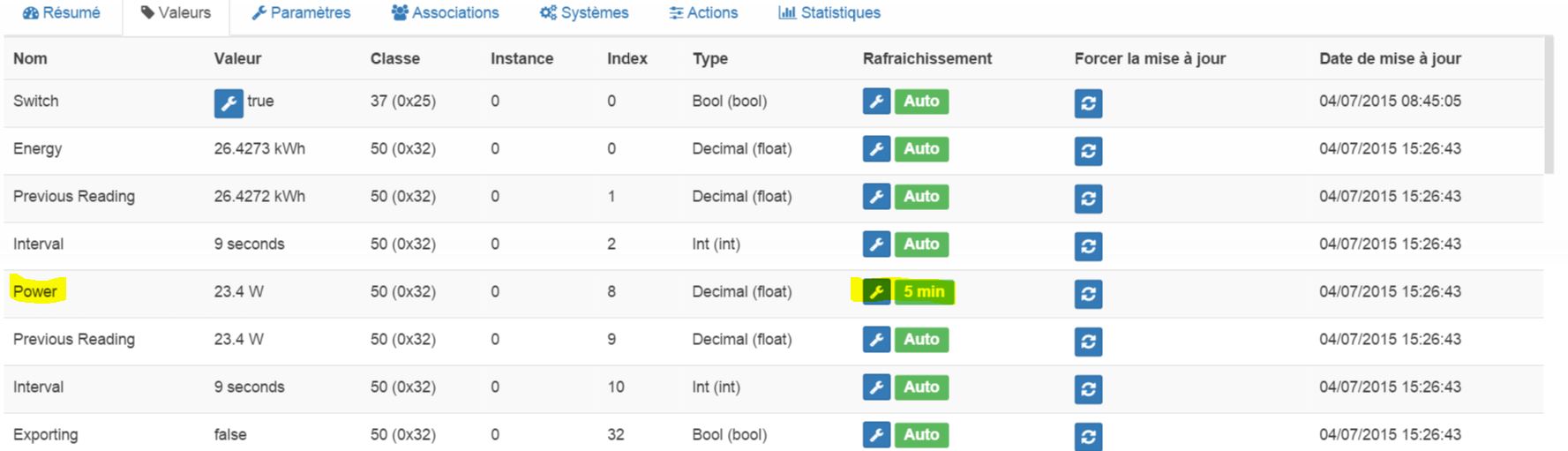
It is just necessary to activate it for the Power command of each socket. This will have the effect of raising the two (consumption and power)
Overall consumption
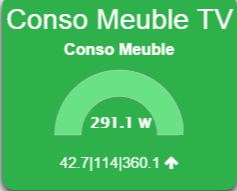
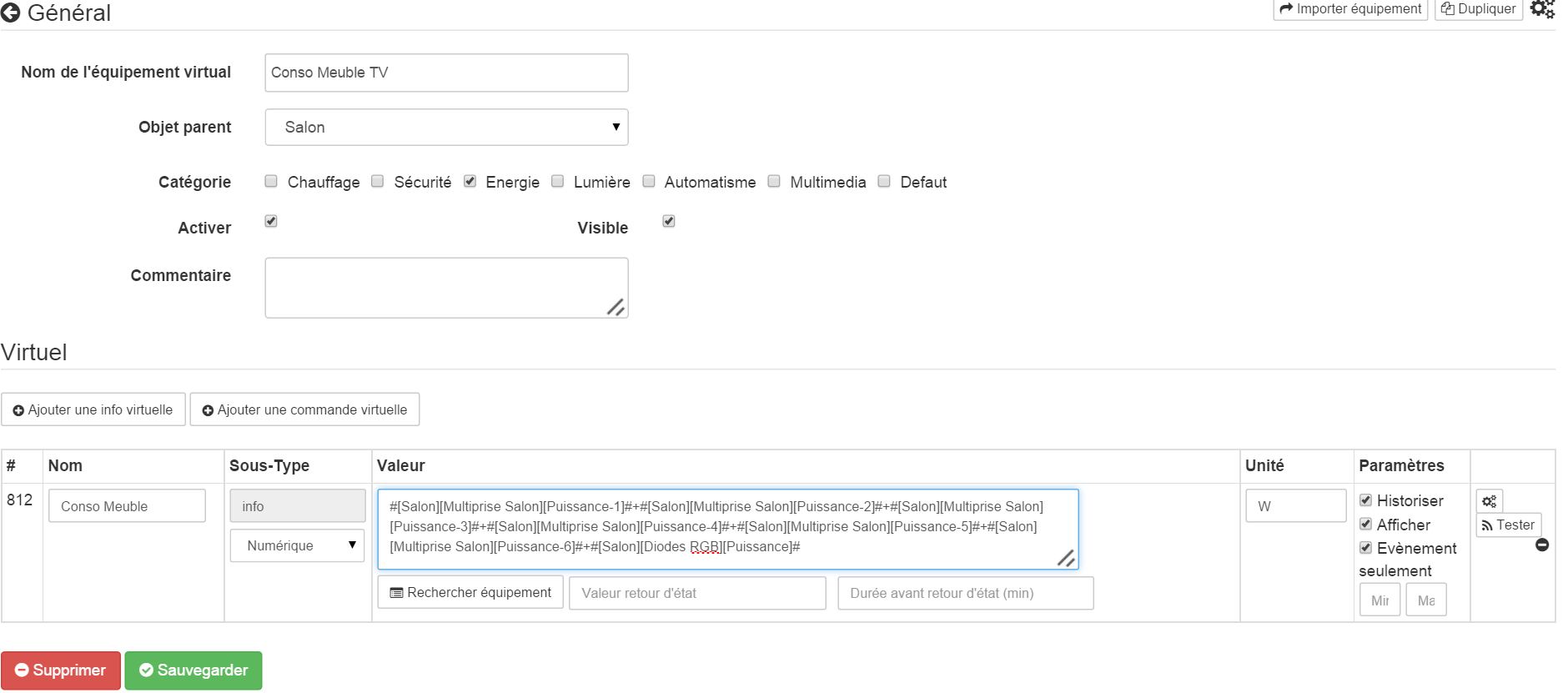
You can use a virtual to create a cumulative consumption of the 6 sockets.
Reset

You can reset your consumption meter by clicking on this button available in the System tab. (There is a reset by socket). Choose PressButton.
Wakeup
No notion of wakeup on this module.